Documentation
AeroPoint user and admin guide.
AeroPoint® is a secure aviation operations web application for managing program waypoints, NOTAMs and hazards, counties, plates, map layers, files, imports, exports, users, groups, audit logs, backups, and deconfliction entries.
Getting Started
What AeroPoint Is
AeroPoint keeps aviation program data and operational planning in one web app. Most users work from the program home page or the Deconfliction page. Administrators also use Settings to manage access, programs, logs, feature flags, and backups.
Signing In
- Open your organization’s AeroPoint site.
- Enter your username and password.
- Select Sign In.
- If your company uses invitations, finish account creation from the invitation link first.
Password Reset
- On the sign-in page, choose the password reset option.
- Enter the email address associated with your AeroPoint account.
- Open the reset email and follow the link.
- Create a new password and sign in again.
Profile And Required Account Fields
New and existing users must keep required profile fields complete before saving profile changes. Required fields include username, email, first name, last name, company name, timezone, coordinate display format, and profile picture.
- Profile picture: required for current profiles and new registrations.
- Company name: required for user identity and deconfliction context.
- Timezone: used for local schedule display and deconfliction entry times.
- Coordinate display format: controls how coordinates are shown after saving.
- Phone number: required only when deconfliction is enabled. Enter a 10-digit US number however you like —
5555555555,555.555.5555,(555)555-5555, or with a leading+1country code — and it is saved and displayed as(555) 555-5555everywhere it appears. Providing a mobile number is consent to receive airspace deconfliction safety alerts by text; reply STOP to opt out.
Basic Navigation
The top navigation changes by role and enabled features. Typical users see program data tabs and may see Deconfliction. Admins see Settings. Contractor-only users see a stripped navigation experience and default to Deconfliction.
- Use the active program selector to switch programs when more than one program is available.
- Use the home page tabs to manage program records.
- Use Deconfliction to add, review, filter, map, and export operation entries.
- Use the profile dropdown for account settings and sign-out.
Home Page / Main Data Tabs
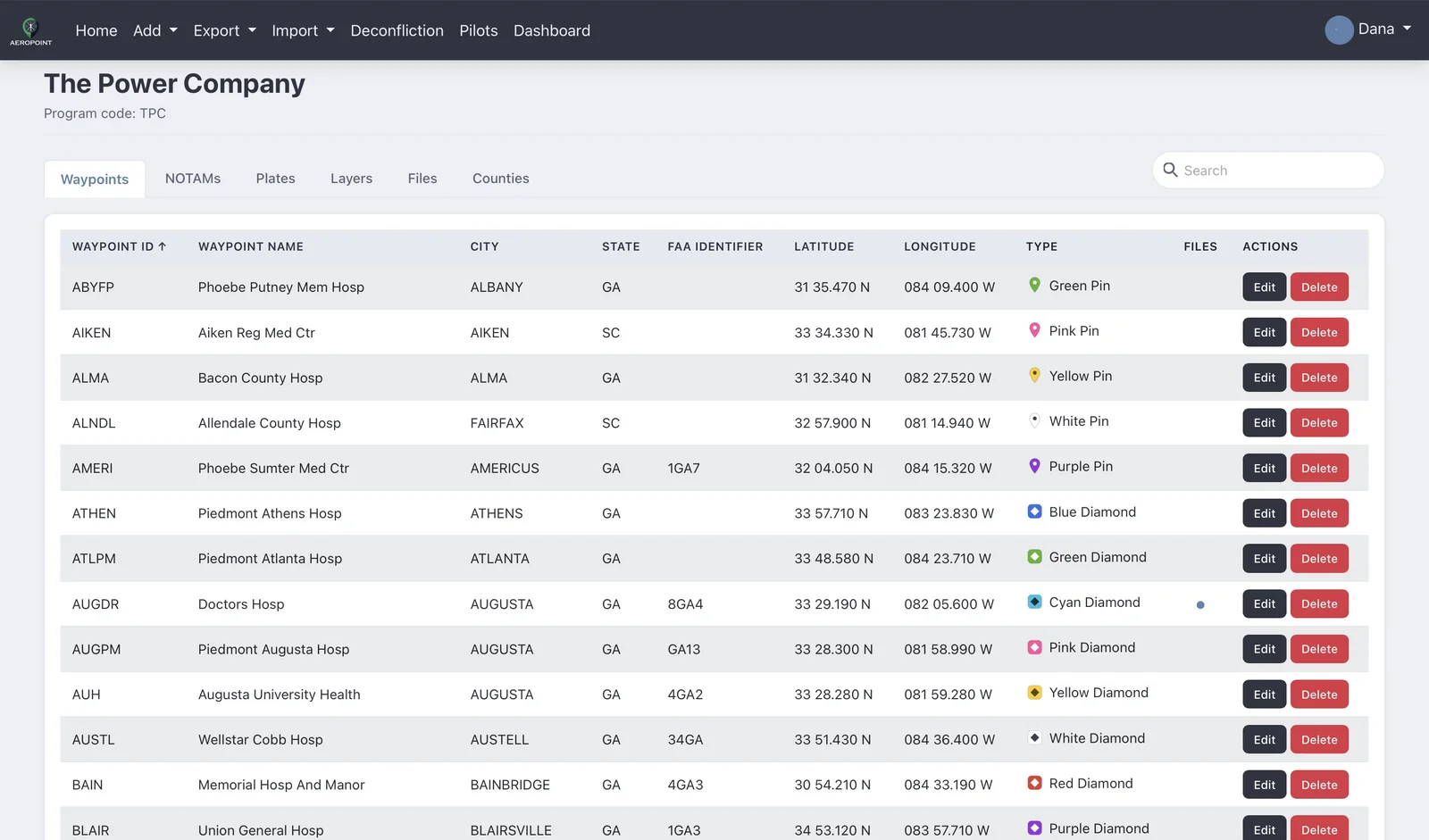
The home page is organized by active program. The visible tabs are Waypoints, NOTAMs, Plates, Layers, Files, and Counties. Counties are hidden for hazard programs.
| Tab | Use It For | Common Actions |
|---|---|---|
| Waypoints | Permanent or program-specific map points. | Add, edit, delete, import CSV, export, manage files. |
| NOTAMs | Temporary hazards and notices shown with reserved hazard icons. | Add, edit, delete, import CSV, attach files. |
| Counties | County boundaries and county descriptions. | View counties and edit descriptions when permitted. |
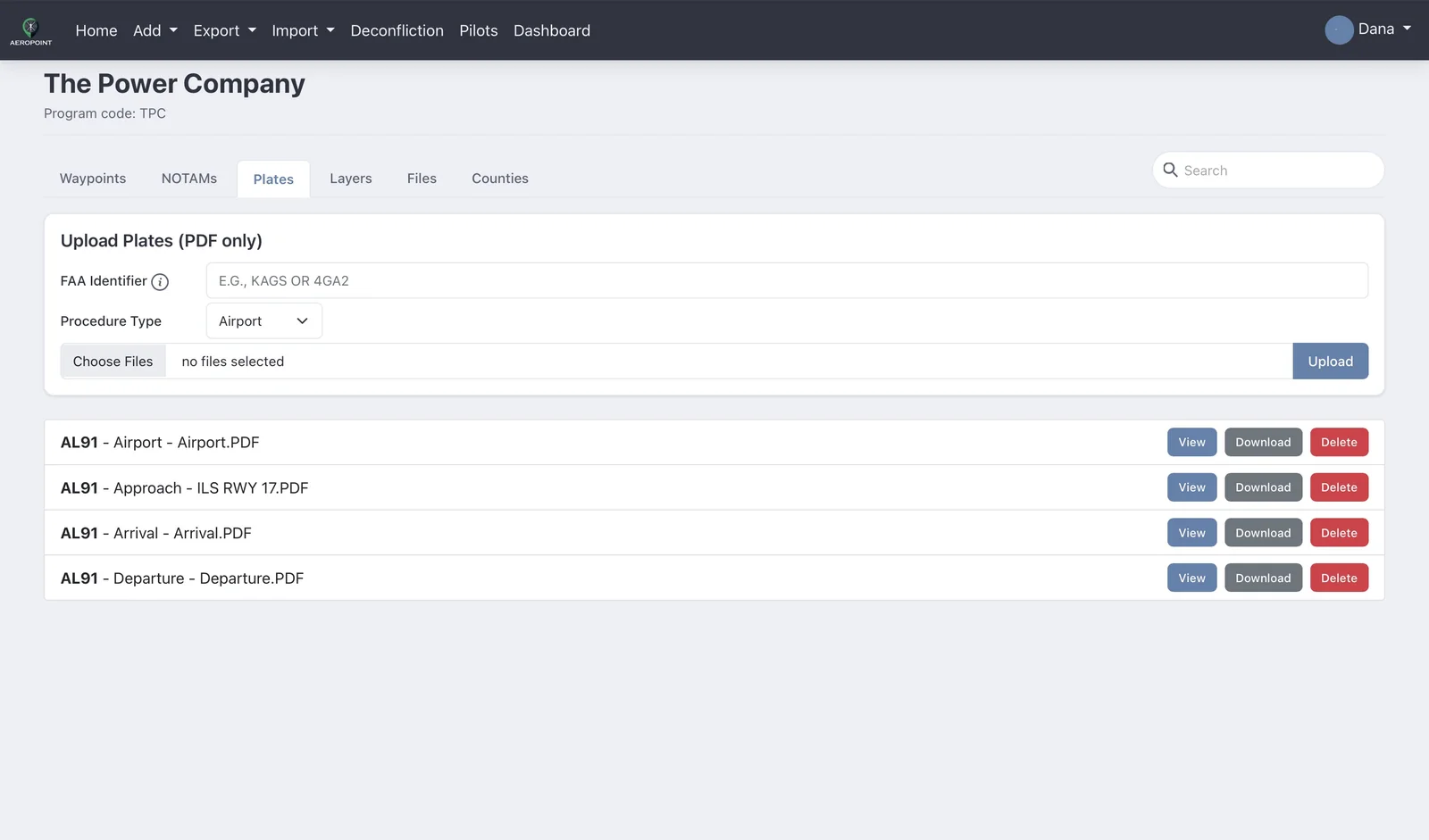
| Plates | Program plate PDFs tied to a four-character code. | Upload PDFs, select procedure type, delete. |
| Layers | Program map layers and related layer files. | Upload supported layer files and remove layers. |
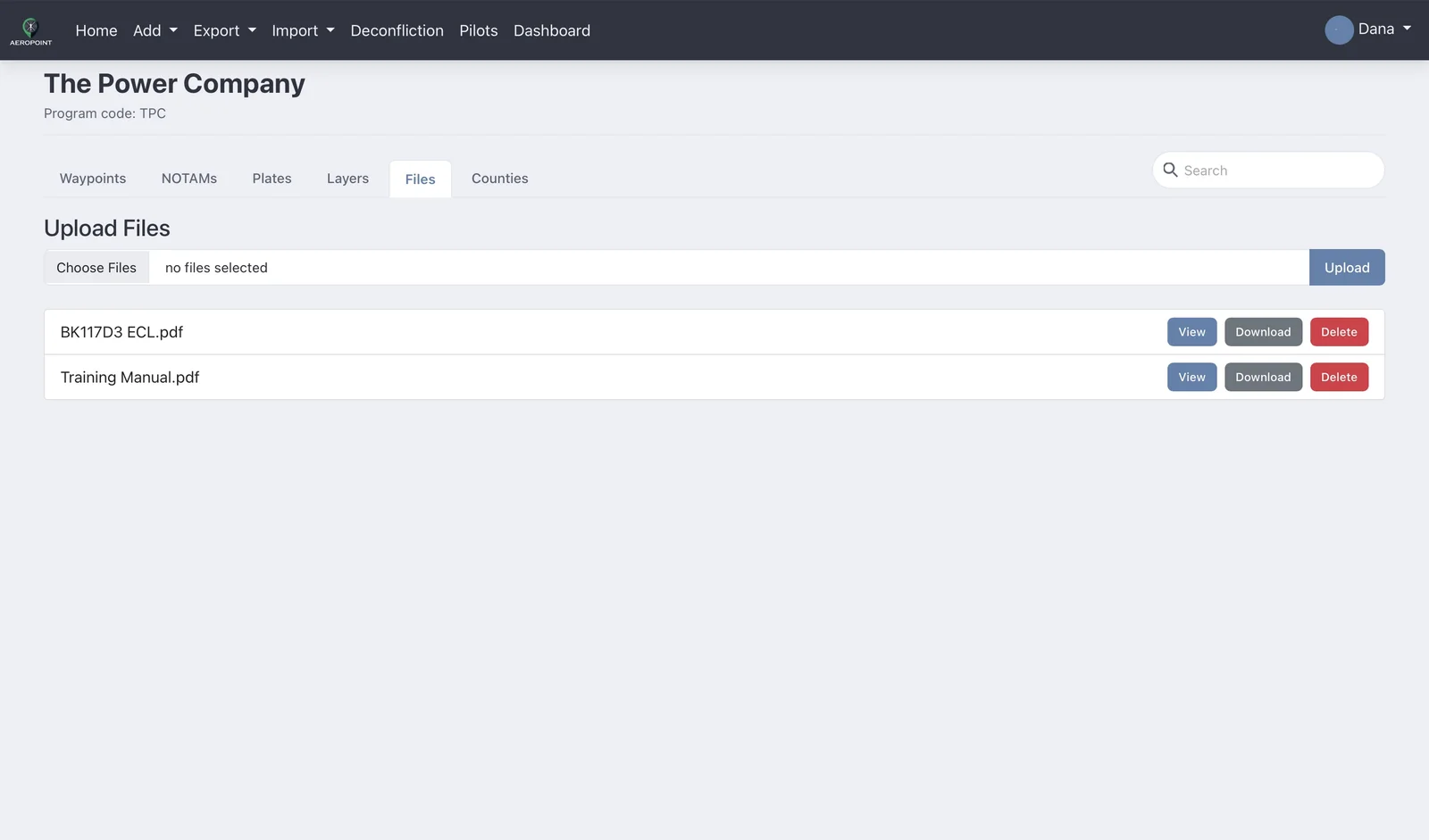
| Files | General program files not tied to a specific waypoint or NOTAM. | Upload, download, delete, and review file indicators. |
Sorting And Order
Main data tables can be sorted by clicking sortable column headers. The Plates, Layers, and Files tabs list their contents in alphabetical order, and new uploads drop into their alphabetical place. Plates order by airport identifier, then procedure type, then name, so all of an airport's plates sit together. Tabs remember the last active tab in the browser so returning to the page opens the same area.
Indicators And Actions
Record tables use indicator dots to show whether descriptions or files exist. The Actions column contains row-specific controls such as edit, delete, file management, and download/open actions. Delete actions ask for confirmation before removing records.
Program Search
Searching Across Every Tab At Once
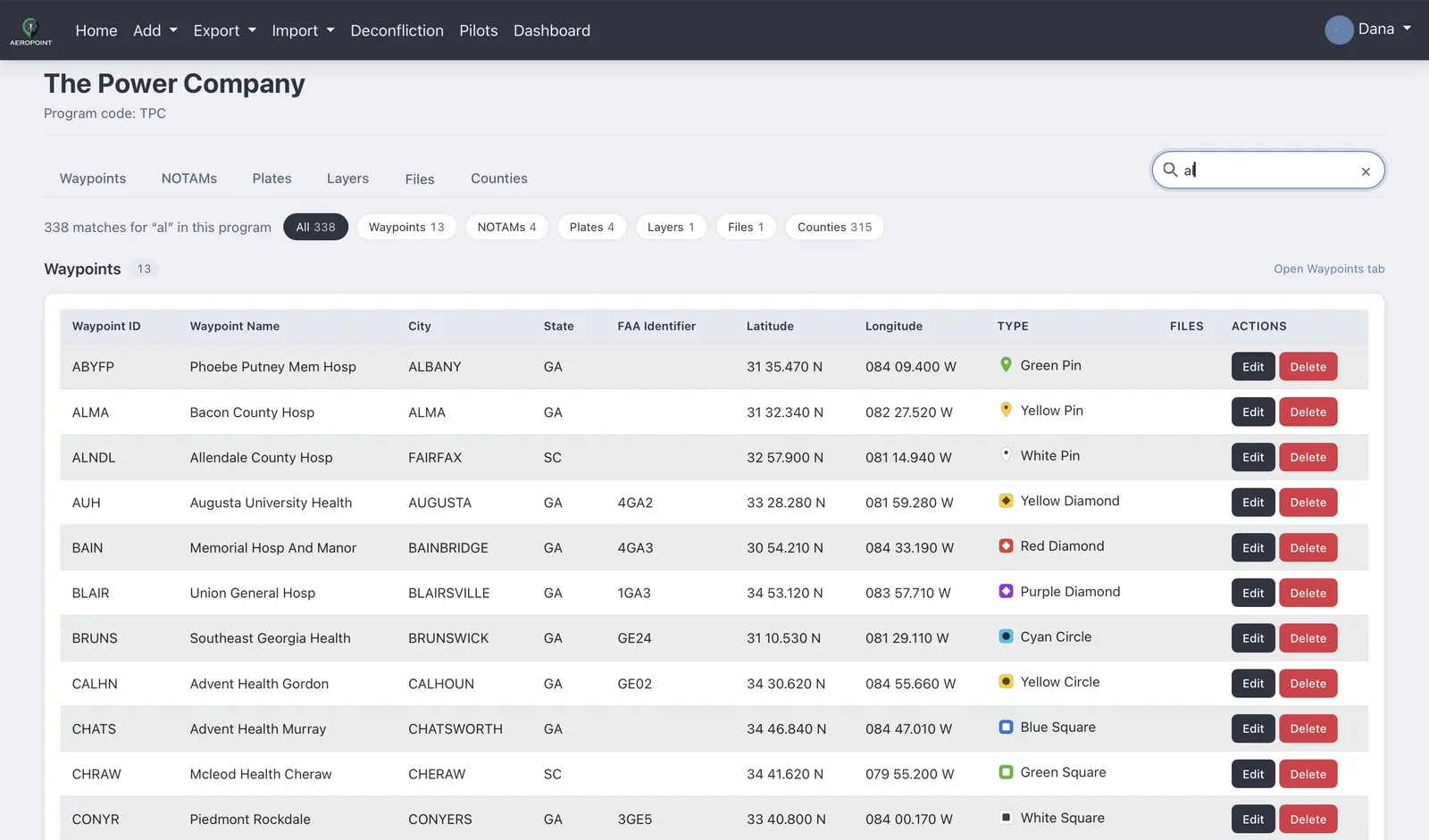
A search box sits beside the tabs on the program page. Typing into it searches every tab at once — waypoints, NOTAMs, plates, layers, files, and counties — and replaces the table below with results grouped by what each item is. Searching "Erlanger" finds the waypoint, the approach plate, and any file with that name together, without checking each tab in turn.
- Open a program and start typing in the search box beside the tabs.
- Results appear below, grouped under headings like Waypoints and Plates, with a count of matches for each.
- Tap one of the count buttons to narrow to just that kind of item, or "Open ... tab" to jump to the full tab.
- Clear the box, or press Escape, to go back to the tab you were on.
Each result keeps its usual Edit, View, Download, and Delete buttons, so you can act on what you find without leaving the results.
How Matching Works
- Search starts at two characters and matches anywhere in a name, so "Erlan" finds "Erlanger". Typing more narrows the results.
- Multiple words all have to match, but they can match in different places — "Erlanger approach" finds a plate filed under its identifier with procedure type Approach.
- Expired NOTAMs are left out, matching what the NOTAMs tab shows.
- Each group shows the first 25 matches and tells you when there are more.
Searching All Programs
By default, search covers only the program you are currently in. If you have access to more than one, an All programs tick box appears next to the search box, and results are labelled with the program they belong to. Editing a result from another program switches you into that program, and you stay there afterward — the active program indicator at the top right will have changed.
Sorting Results
Search results have the same sortable column headings as the Waypoints and NOTAMs tabs. Click a heading to sort that group of results, and click it again to reverse the order. Each group sorts on its own, so you can order waypoints by city and NOTAMs by end time at the same time. Sorting is remembered while you keep searching and resets when you clear the box.
On Phones And Tablets
On small screens the search box moves to its own full-width row under the tabs, and waypoint results stack into cards instead of a sideways-scrolling table. Because the column headings are not on screen in the card layout, the same columns are offered as a Sort by control above each group.
Waypoints
Adding A Waypoint
- Select the correct active program.
- Open the Waypoints tab.
- Select the add waypoint action.
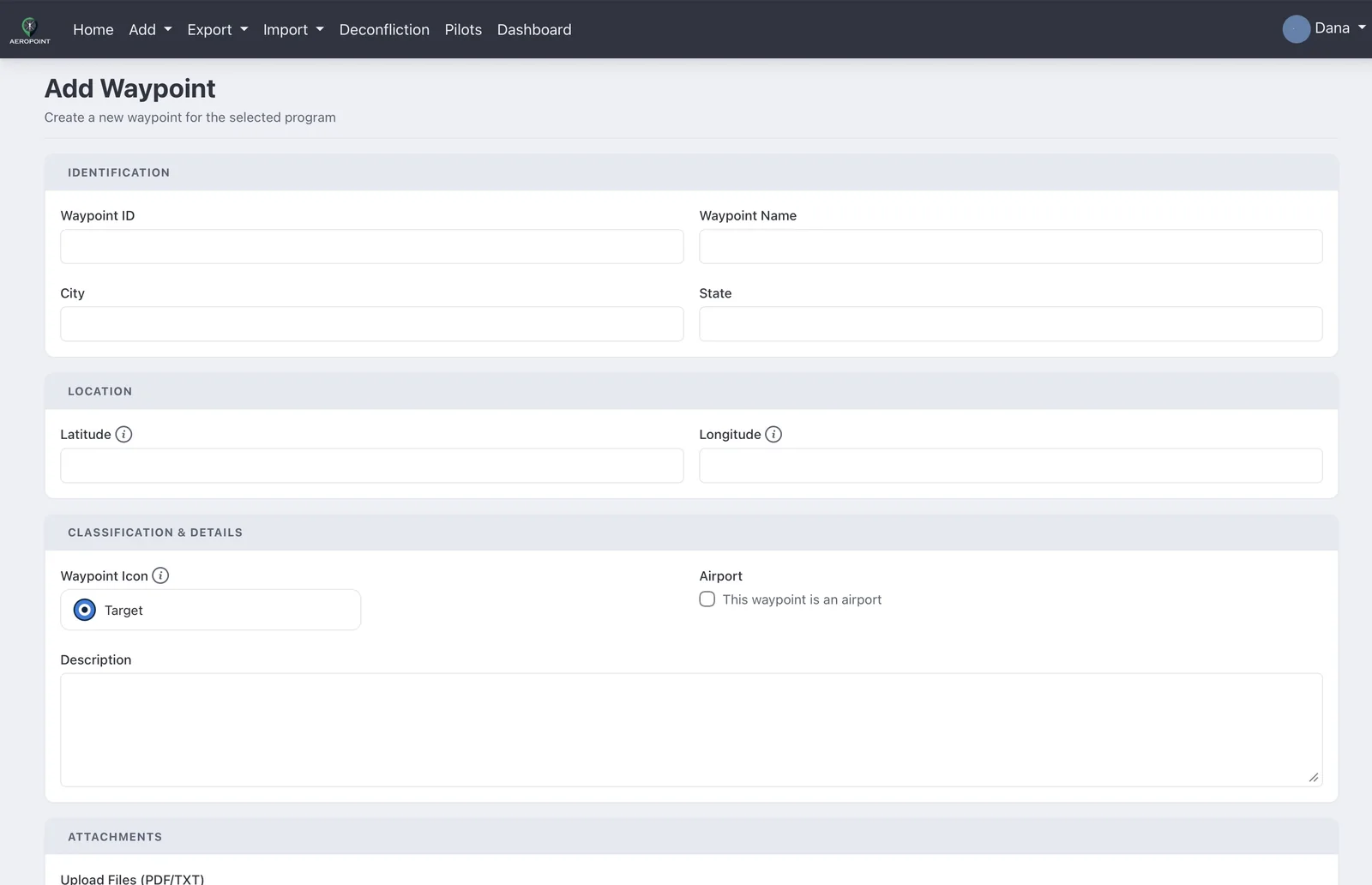
- Enter Waypoint ID, Waypoint Name, latitude, longitude, and any optional city, state, FAA identifier, description, or files.
- Choose a Waypoint Icon.
- If the waypoint is an airport, check Airport and provide an FAA identifier.
- Save the waypoint.
Editing Or Deleting A Waypoint
- Find the waypoint in the Waypoints table.
- Use the Actions column to edit or delete.
- When editing, update fields and save.
- When deleting, confirm the prompt before the record is removed.
How Waypoints Appear
Waypoints appear in the program list and in map/export views using their saved coordinates and selected icon. File and description indicators help identify records with extra details without opening each row.
Changing The Waypoint Icon
- Open the waypoint add or edit form.
- Open the Waypoint Icon picker.
- Search or browse icon groups: Pins, Diamonds, Circles, Squares, and Shapes.
- Select an icon and save the waypoint.
The icon picker shows the actual icon, and the CSV import uses the matching value in the Waypoint Type column.
| Icon | CSV Value | Icon | CSV Value | Icon | CSV Value |
|---|---|---|---|---|---|
bpin | gpin | ltbpin | |||
pkpin | ypin | wpin | |||
ppin | bdiamond | gdiamond | |||
ltbdiamond | pkdiamond | ydiamond | |||
wdiamond | rdiamond | pdiamond | |||
bcircle | gcircle | ltbcircle | |||
pkcircle | ycircle | wcircle | |||
rcircle | pcircle | bsquare | |||
gsquare | ltbsquare | pksquare | |||
ysquare | wsquare | rsquare | |||
psquare | target | diamond | |||
square | triangle | pmcircle | |||
pmsquare |
Coordinates
AeroPoint accepts decimal degrees, degrees decimal minutes, and degrees minutes seconds. Examples include 38.888160, 38 53.290 N, 38 53 17 N, -77.019868, 77 1.192 W, and 77 1 11 W.
W suffix, and review imported coordinates before saving.Uploading Or Associating Files
- Open the waypoint add/edit file area or use the row file action.
- Select PDF or TXT files.
- Upload and save.
- Return to the Waypoints table and confirm the file indicator dot is present.
NOTAMs / Hazards
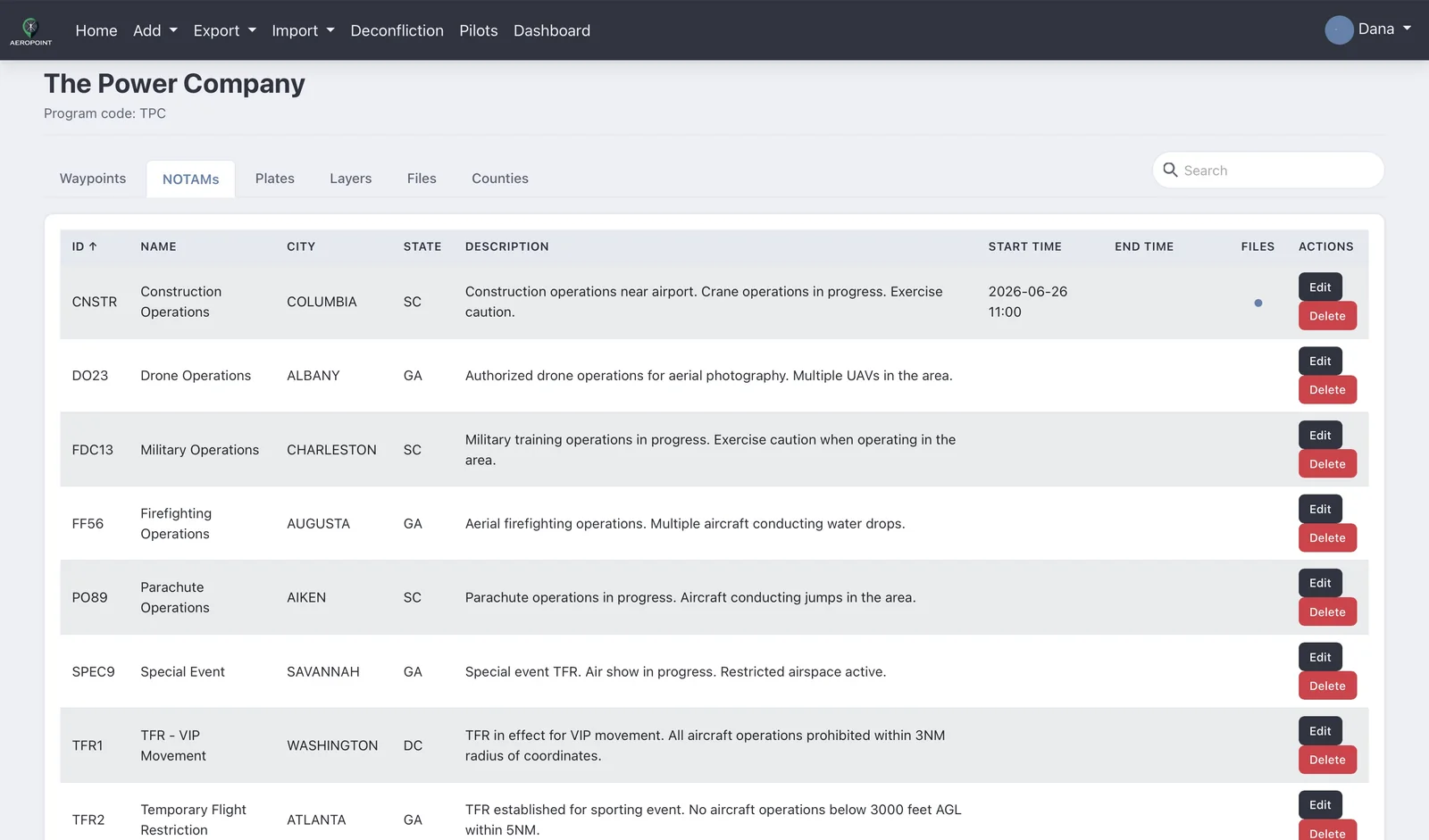
NOTAMs and hazards use waypoint-like storage but are separated from ordinary waypoints because they export as a separate NOTAM file instead of being included in the waypoint export. They are shown with the reserved hazard marker, may include active start/end windows, and expired entries are hidden when their end time is in the past.
Adding A NOTAM Or Hazard
- Open the active program.
- Select the NOTAMs tab.
- Choose the add NOTAM/hazard action.
- Enter NOTAM ID, NOTAM Name, latitude, longitude, and NOTAM text or description.
- Add optional city, state, start date, end date, and attachments.
- Save the entry.
Editing And Deleting
- Find the entry in the NOTAMs table.
- Use the Actions column to edit or delete.
- Update required fields, active window, text, or files as needed.
- Confirm delete prompts before removing an entry.
Differences From Waypoints
- NOTAM/hazard entries use reserved hazard icon behavior instead of the ordinary Waypoint Icon picker.
- NOTAMs export separately from waypoint files, which keeps temporary hazards out of permanent waypoint exports.
- They may have start and end dates that control visibility.
- They are intended for temporary or cautionary operational information.
- Attachments are handled like waypoint attachments, with PDF/TXT support in the UI.
Automatic NOTAM Exports
If a user has automatic NOTAM exports enabled and is connected to the same Dropbox account used for ForeFlight, AeroPoint exports NOTAMs.zip to Dropbox for the selected programs. ForeFlight can then pick up the updated NOTAM content pack from that Dropbox account.
- Creating, editing, or deleting a NOTAM/hazard triggers a background export for relevant Dropbox accounts.
- AeroPoint also checks for NOTAMs becoming active and triggers exports for affected programs.
- The exported NOTAM file includes active NOTAMs: start time is blank or has passed, and end time is blank or still in the future.
- When a NOTAM ends, it no longer appears in the active NOTAM export after expiration cleanup and the export process run.
Counties
The Counties tab displays county boundaries loaded from static county KML files and county-specific information stored in AeroPoint. Counties are available on normal programs and hidden for hazard programs.
- Open the active program.
- Select Counties.
- Review county rows and any description indicator dots.
- If you have permission, edit county description information and save.
Plates
Adding Plates
- Open the Plates tab.
- Enter the plate code in the FAA identifier field.
- Select the procedure type: Airport, Departure, Arrival, Approach, or Other.
- Select one or more PDF files.
- Upload the files.
Deleting Plates
- Find the plate row.
- Select the delete action.
- Confirm the prompt.
Layers
Layers are program-level map or reference files. The current UI supports .kml, .kmz, .mbtiles, .fbtiles, and .pdf files.
- Open the Layers tab.
- Select one or more supported files.
- Upload the files.
- Use delete actions to remove layers that should no longer be distributed with the program.
KMZ Layers
Because a KMZ bundles its artwork inside the file, custom icons and imagery travel with the layer instead of being lost — something plain KML cannot carry on its own. Uploaded KMZ files are included automatically in ForeFlight content pack exports.
Files
Uploading Program Files
- Open the Files tab.
- Select one or more files.
- Upload the files.
- Return to the tab after the page reloads and confirm the files appear.
Associating Files With Records
Waypoint and NOTAM records can have attached files. Use the record-specific file area or row action to upload attachments. File indicator dots show which records already have files.
- Open the record’s edit/file action.
- Select PDF or TXT attachments when the UI limits file types.
- Save or upload.
- Use delete actions to remove stale attachments.
Dropbox Behavior
If Dropbox is connected, AeroPoint can use the integration for file workflow support. Files still appear in AeroPoint through the relevant program or record file lists. If files do not appear where expected, check the connection status in Account Settings and confirm the file was uploaded to the intended program or record.
Import / Export
Waypoint Import
- Open the active program and go to Waypoints.
- Download or review the sample CSV.
- Prepare a CSV with the required columns.
- Choose the waypoint import action and select the file.
- Review import feedback and correct any reported rows.
Current waypoint CSV columns:
Waypoint ID,Waypoint Name,City,State,Latitude,Longitude,Waypoint Type,Airport,FAA Identifier,DescriptionExample row:
ABVLE,Abbeville Area Med Ctr,ABBEVILLE,SC,34.158333,-82.382000,bpin,Yes,SC83,Abbeville Area Med Ctr waypoint from AeroPoint exportNOTAM Import
- Open the active program and go to NOTAMs.
- Prepare a CSV using the NOTAM sample format.
- Import the file.
- Review any validation errors and confirm the entries appear in the NOTAMs table.
Current NOTAM CSV columns:
NOTAM ID,NOTAM Name,City,State,Latitude,Longitude,NOTAM Text,Start Date,End DateExample row:
FDC12,TFR - VIP Movement,WASHINGTON,DC,38.8977,-77.0365,TFR in effect for VIP movement. All aircraft operations prohibited within 3NM radius of coordinates.,6/15/24 14:00,6/15/24 14:00. Blank start or end dates are allowed in the sample.Common CSV Mistakes
- Missing or renamed column headers.
- Waypoint IDs longer than five characters.
- Duplicate waypoint IDs in the same program.
- Unsupported Waypoint Icon values.
- Latitude and longitude reversed.
- Descriptions with line breaks not wrapped correctly by the CSV editor.
Exports
AeroPoint supports exports for program data and deconfliction data based on enabled features. Export options may include KML, CSV, route/geospatial files, and program-specific export packages. Route and geospatial exports use the saved coordinates and route segments from the current records.
For deconfliction exports, use the Export control on the Deconfliction map/table view after filtering to the records you need.
Automatic Dropbox Exports
When Dropbox is connected to the account used by ForeFlight, AeroPoint can keep export packages updated in Dropbox so ForeFlight receives the latest files.
- NOTAMs: selected programs export to NOTAMs.zip. NOTAM changes and activation checks trigger updated exports for the affected Dropbox account.
- Deconfliction: the scheduled hourly export command uploads DECON.zip for users with Dropbox connected when the deconfliction feature is enabled.
- Ended records: NOTAMs with past end times drop out of NOTAM exports. Deconfliction entries with past end times drop out of the scheduled deconfliction export.
Deconfliction Import Buttons
The deconfliction form always shows Import from Aloft, Import from ForeFlight, and Import from Google Earth. ForeFlight and Google Earth imports switch the operation type to Route. Aloft imports mission details when your token and mission data are available. Review every imported point before submitting.
Dropbox Integration
What It Does
Dropbox integration connects your AeroPoint account to Dropbox-supported file workflows. It helps keep exported or uploaded operational files available outside the app when your organization uses that workflow.
Connect Or Configure
- Open the profile dropdown.
- Select Account Settings.
- Find the Dropbox integration area.
- Connect or refresh the Dropbox authorization.
- Return to AeroPoint and confirm the connected state is shown.
Expected Workflow
- Upload or export files from AeroPoint.
- Confirm the files appear in the related AeroPoint tab or record.
- Check Dropbox if your company workflow expects synced output there.
- Reconnect Dropbox from Account Settings if sync fails or authorization expires.
Account Settings
Use Account Settings to update identity, profile, display, integration, and password information.
- Username, email, first name, last name: required account identity fields.
- Timezone: required for local display and deconfliction schedules.
- Coordinate display format: controls how coordinates are displayed after data is saved.
- Company name: required.
- Phone number: required only when deconfliction is enabled. Any common way of writing a 10-digit US number is accepted, including a leading +1, and it is stored and shown as
(555) 555-5555. - Profile picture: required before saving a complete profile.
- Aloft API token: shown as a protected token field when available. Existing tokens may appear masked.
- Automatic NOTAM export program selection: available when the related feature is enabled.
- Password change: updates the current password after validation.
Admin Settings Page
The Settings page includes tabs based on role and feature access. Company admins and superusers see the broadest management tools.
| Tab / Section | Who Can Access | What It Is For |
|---|---|---|
| Programs | Users with Settings access | Create, rename, delete, and assign programs. |
| Users | Company admins and superusers | Manage users, invitations, access requests, status, and groups. |
| Groups | Settings users | Create groups and assign programs to groups. |
| Logs | Company admins and superusers | Search, filter, sort, paginate, and export audit logs. |
| Database | Staff and company admins; restore is superuser-only | Create company or full backups; restore full backups where allowed. |
| Features | Superusers | Enable or disable feature flags. |
| Deconfliction email recipients | Admins when deconfliction is enabled | Manage additional conflict notification recipients. |
Multi-Select Behavior
Multi-select fields for groups and programs use click/tap toggles. You do not need Ctrl or Cmd. Click a selected option again to deselect it.
Common Settings Mistakes
- Creating a program without being in at least one group.
- Using a program code longer than 10 characters.
- Forgetting to assign a new group to a program.
- Expecting deleted users or programs to remain available in ordinary user views.
- Changing feature flags without telling affected users to refresh.
Audit Logs
What Gets Logged
Audit logs are stored in PostgreSQL for long-term retention. They capture create, update, delete, admin, access, backup, and operational events — and every time information leaves the system: exporting waypoints, NOTAMs, counties, or content packs, downloading a plate, layer, attachment, or database backup, and restoring a backup. Opening a document to read it on screen is recorded as a View rather than an Export, so you can tell reading apart from taking a copy. Attempts to reach a program someone does not have access to are recorded as Access Denied.
- Open Settings.
- Select Logs.
- Use the Action filter to narrow to Export, View, or Access Denied, or search by text.
- Use the Category filter to narrow to a kind of record, and date filters to narrow the window.
- Sort columns and use pagination to move through results.
- Select Export CSV when you need a filtered copy.
Archived Logs
Entries older than a year are automatically moved into compressed archive files once a month, which keeps the log quick to search. Nothing is deleted: the archives are listed at the bottom of the Logs tab and can be downloaded at any time.
- Nothing to configure — archiving runs on its own monthly.
- To read older activity, go to Settings → Logs and scroll to Archived logs.
- Download the archive covering the dates you need.
Programs And Groups
Programs
- Open Settings and select Programs.
- Enter Program Name and Program Code.
- Choose an initial group when available.
- Select Create Program.
- Use Rename Program to update name or code.
- Use Delete Program only when the program should be removed.
Groups
- Open Settings and select Groups.
- Create a group with a clear name.
- Assign programs using the multi-select control.
- Assign users to groups from the Users tab.
- Edit group program membership as operations change.
- Delete groups only after confirming users and programs no longer depend on them.
User Management
Users, Invitations, And Access Requests
- Open Settings and select Users.
- Review active users, pending invitations, and pending access requests.
- Send invitations by entering an email address and selecting groups.
- Approve or reject access requests after verifying the requester.
- Update user group membership with the click/tap multi-select control.
- Use status/delete actions carefully; changes affect access immediately or after the next refresh.
Operations Users
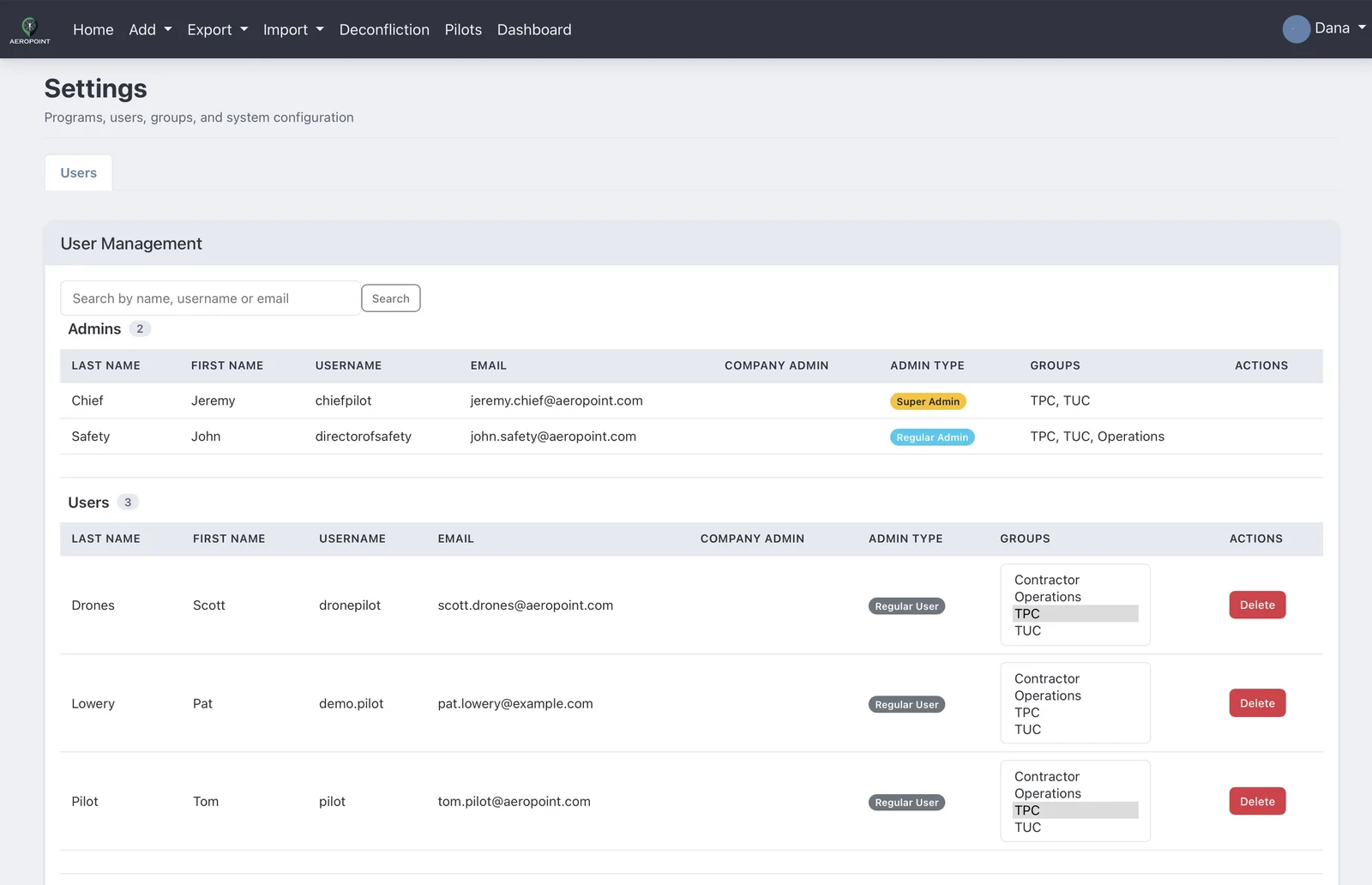
Add a user to the Operations group to make them an operations-center user. Operations users see every group's programs, and in Settings they get the Users tab: they can invite users, approve or reject access requests, set groups (including Contractor) and remove users, but they cannot change admins or make anyone an admin. They appear in their own Operations section of User Management (admins who are also in Operations stay under Admins).
Groups are checkboxes, and every click saves. Operations already has every group, including groups added later, so ticking it clears and greys out the other groups. Contractor stands alone the same way.
Contractor-Only Behavior
Users who are only in the Contractor group see a stripped navigation experience. They default to Deconfliction and only see the logo/profile dropdown rather than the full navigation. Add another group if a contractor needs access to program data tabs.
Deconfliction
What It Is For
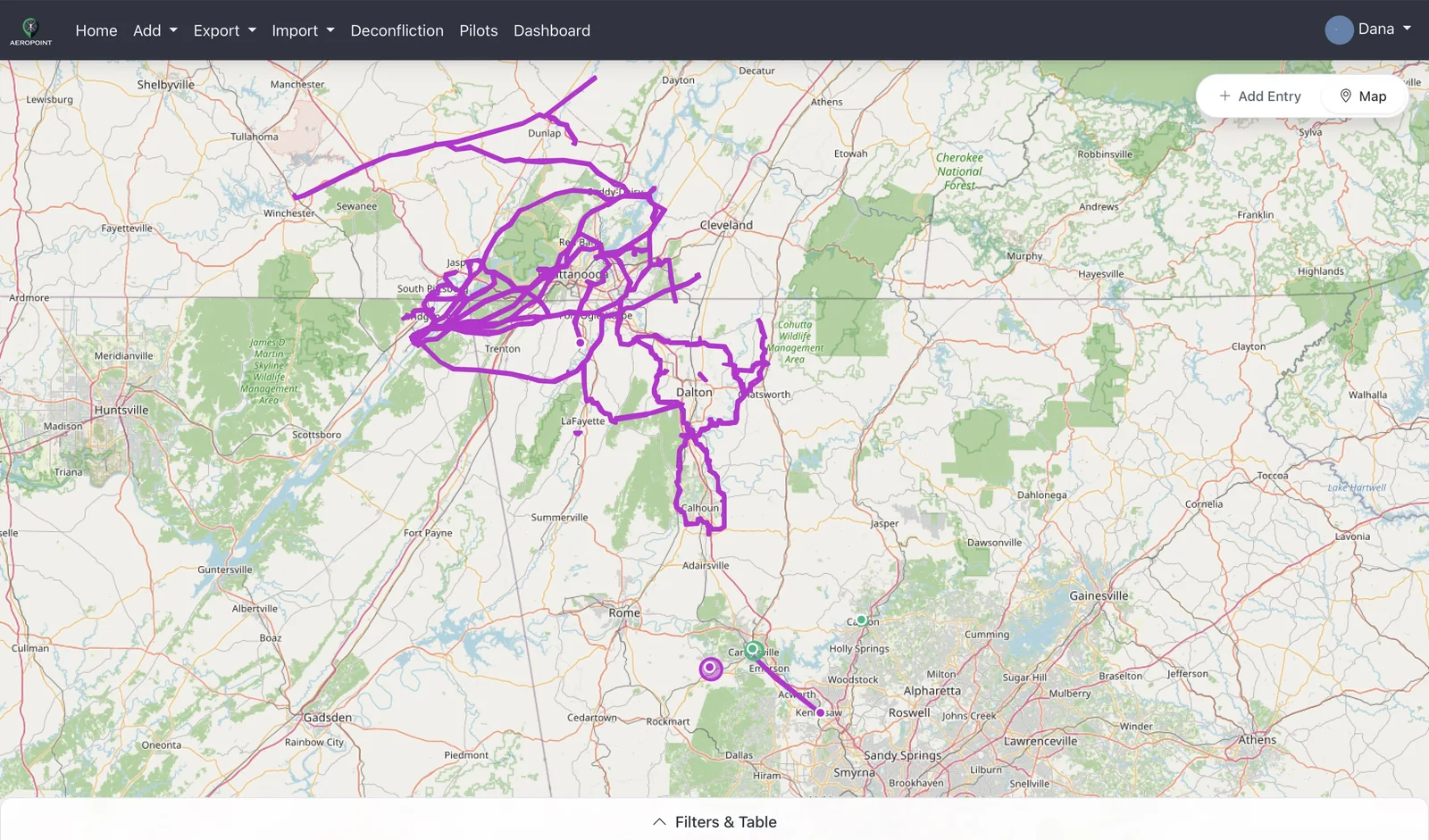
Deconfliction helps aviation teams communicate planned operations, compare overlapping time and airspace, and review potential conflicts before or during field operations. Use it when aircraft, sUAS, routes, mission areas, or work zones could overlap with other active or planned operations.
Add Entry Page
- Open Deconfliction.
- Select Add Entry.
- Complete Operator fields: First Name, Last Name, Company Name, and Pilot Phone.
- Complete Aircraft fields: Aircraft Type, Tail Number when shown, and Radio Frequency if needed.
- Set Start Time (Local) and End Time (Local).
- Select Mission. If Mission is Other, enter Mission Type.
- Select Operation Type: Area, Route, or Mission Area when available.
- Enter latitude/longitude and Airspace Diameter or Corridor Width — or use Select on Map / Draw on Map to place the operation visually (see "Placing An Operation On The Map" below).
- Submit the entry and review the conflict-check popup.
Edit Entry Page
- Open the entry from the Current Entries table.
- Update operator, aircraft, schedule, mission, route, or airspace details.
- Review imported or saved route points if the entry is a Route.
- Select update/save.
- Review any conflict-check popup before continuing.
Placing An Operation On The Map
Instead of typing coordinates, you can place an operation directly on a map. The map picker works with a mouse on desktop and with touch on tablets and phones, on both the Add Entry and Edit Entry pages. Coordinates already entered in the form — in any accepted format — pre-load onto the map when it opens.
Areas On The Map
- With Operation Type Area, press Select on Map next to the latitude/longitude fields.
- Tap once to set the center of your operation area.
- Move the cursor (or drag your finger) to size the circle, then tap again to lock the radius. The diameter is shown on screen the whole time.
- Fine-tune by dragging the center to move the circle, dragging the edge handle to resize it, or setting an exact diameter with the slider or number field at the bottom.
- Press Use this area — the coordinates and diameter fields are filled in for you.
Routes On The Map
- With Operation Type Route, press Draw on Map.
- Each tap on the map adds the next point in the route. The corridor is drawn around the route as you go, so you can see exactly how wide it is; adjust the width with the slider or number field.
- Drag any point to move it. Tap a point to pop up a delete button. Tap the line between two points to insert a new point on that leg.
- Press Use this route — the route points and corridor width are filled into the form.
Map Picker Controls And Limits
- Undo steps back through your changes, Clear starts over, and Cancel closes the map without touching the form.
- The 0.1–5.0 NM diameter / corridor-width limit applies on the map exactly as it does in the form fields.
- The typed-coordinate workflow is unchanged — the map is an addition, not a replacement.
- The map picker is not offered for Mission Area (polygon) entries imported from Aloft.
Your Own Flights Never Conflict
A pilot or aircraft can't be in conflict with itself, so AeroPoint skips overlapping entries that are clearly the same flight crew. That means you can file one entry per power line for the same window and cross between them without triggering a deconfliction.
- Same aircraft: planes and helicopters with the same tail number (spaces, dashes and capitals don't matter), whoever is flying.
- Same pilot: the same pilot phone number and last name, and the same pilot email when both entries have one. No account is needed, so it works for pilots an operations user files for.
- Company and first name are not used. If AeroPoint can't be sure, it treats the entries as different pilots, so a real conflict is never hidden.
Required Fields And Validation
- Aircraft Type choices are Plane, Helicopter, and sUAS.
- Tail Number shows for Plane and Helicopter, and is hidden/cleared for sUAS.
- Tail numbers can be N-numbers or callsigns, saved per user, and can be up to 50 characters.
- Mission choices include Utility, Fire, Drone, and Other. Other requires a mission type/description.
- Operation Type choices are Area, Route, and Mission Area when available.
- Airspace Diameter and Corridor Width must be from 0.1 to 5.0 NM.
- Phone numbers may be entered in any common format, including with a +1 country code, and are saved and shown as
(555) 555-5555. - Schedule fields use local time based on the user’s timezone/profile context.
Tail Number Dropdown
- Select Aircraft Type Plane or Helicopter.
- Open the Tail Number dropdown. Entries are listed alphabetically, with a search box at the top.
- Start typing any part of the value to narrow the list, then press Enter to pick the first match or click the one you want.
- Use the trash icon only when you want to delete the saved tail number.
- Use Add Tail Number at the bottom to save a new value — it stays visible while you search, so if what you typed does not exist yet you can add it without clearing the box.
Import Buttons
The form always shows Import from Aloft, Import from ForeFlight, and Import from Google Earth.
- Import from Aloft can fill mission details when a valid API token and mission data are available.
- Import from ForeFlight imports route files and switches Operation Type to Route.
- Import from Google Earth imports KML/KMZ route files and switches Operation Type to Route.
- After any import, review and edit route points before submitting.
Saved Routes And Route Points
When Operation Type is Route, the Saved Routes dropdown appears. Routes are listed alphabetically, and a search box at the top narrows the list as you type — "chatt" finds "Chattanooga". Click anywhere on a saved route row to select it, or press Enter to pick the first match. The trash icon deletes only; it does not select the route. Route entries include a route point editor, and multiple route segments may display as separate lines on the map/export depending on the imported or edited route data. Capitalisation does not matter, either for searching or for the ordering, and on a phone or tablet the search box does not grab focus, so the on-screen keyboard stays out of the way of the list.
Automatic Deconfliction Exports
When deconfliction is enabled and a user has Dropbox connected, AeroPoint’s scheduled hourly deconfliction export uploads DECON.zip to Dropbox. If that Dropbox account is connected to ForeFlight, the deconfliction content pack becomes available there after Dropbox and ForeFlight sync.
- The scheduled export runs from the app’s automatic deconfliction export command.
- The current source exports entries that have not ended yet, so active and upcoming operations remain in the Dropbox package until their end time passes.
- Ended operations are removed from later automatic exports.
- The manual map export can be used separately when an admin needs a direct download from the Deconfliction page.
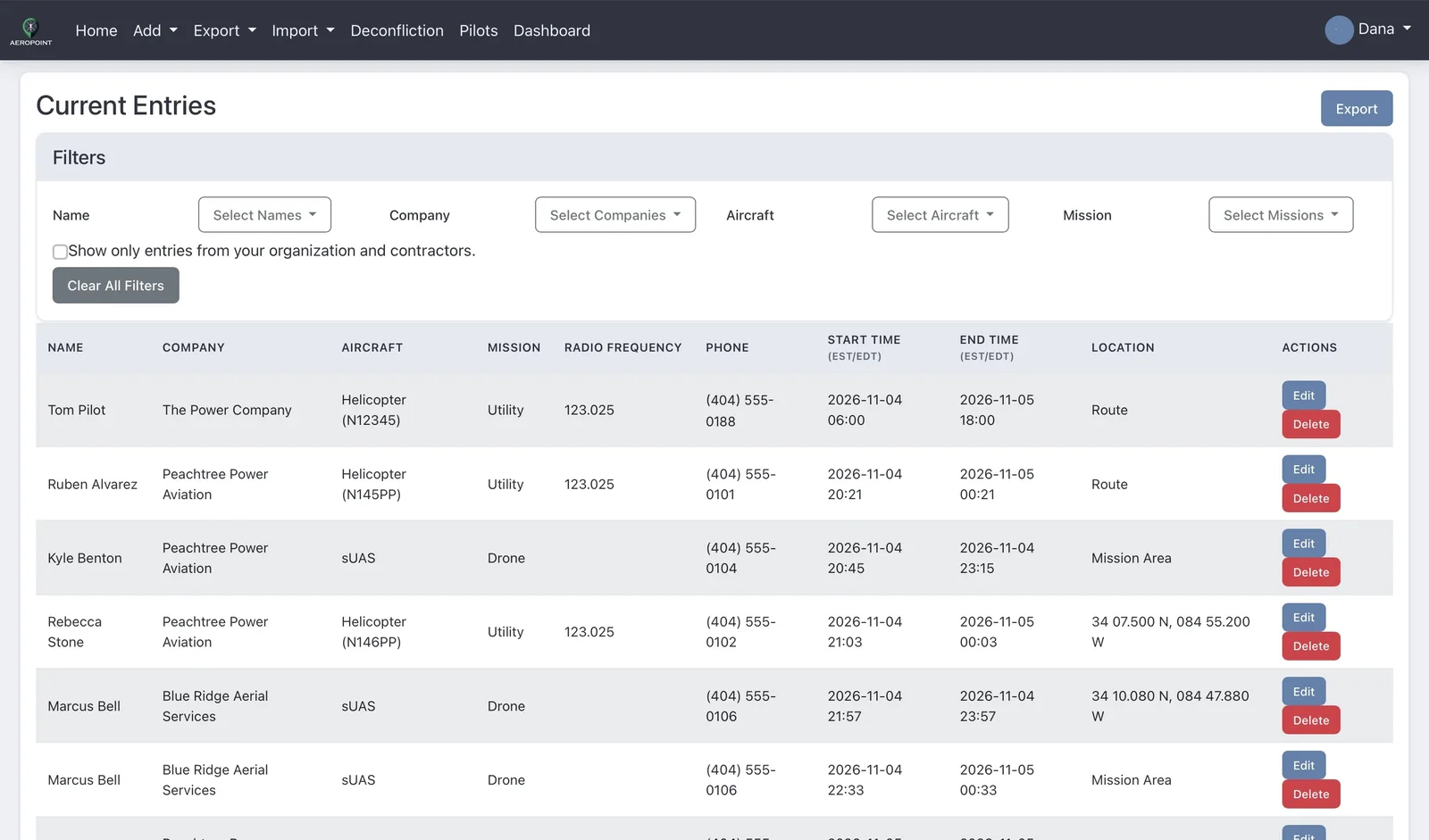
Map Page, Current Entries, Filters, And Export
- Select Map from Deconfliction.
- Use the map to review active and planned entries.
- Open Filters & Table to review Current Entries.
- Filter by available fields such as aircraft type, mission, status, or date range.
- Use Export to download the filtered or current deconfliction data when needed.
Email And Text Notifications
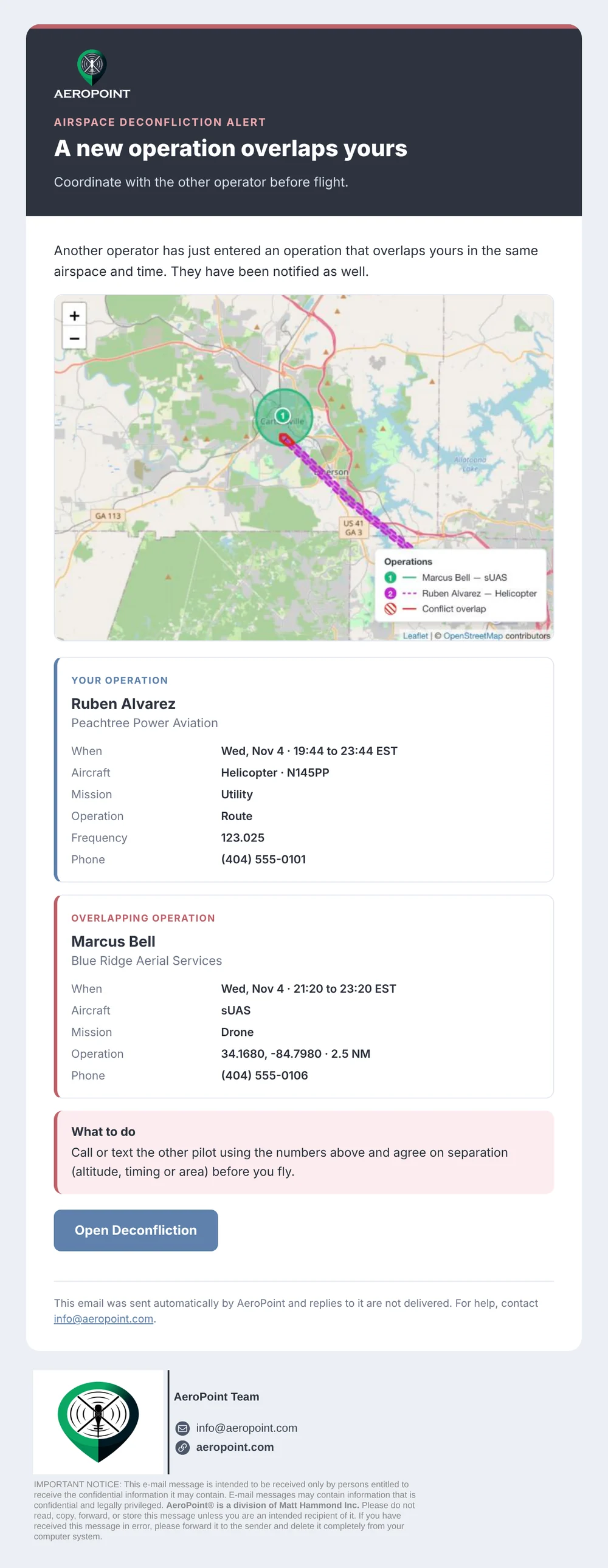
When conflicts are detected, AeroPoint sends email notifications to involved users, company admins, and configured deconfliction recipients. The email conflict image provides a visual overview of overlapping operations, including callouts, legend, and airspace conflict details.
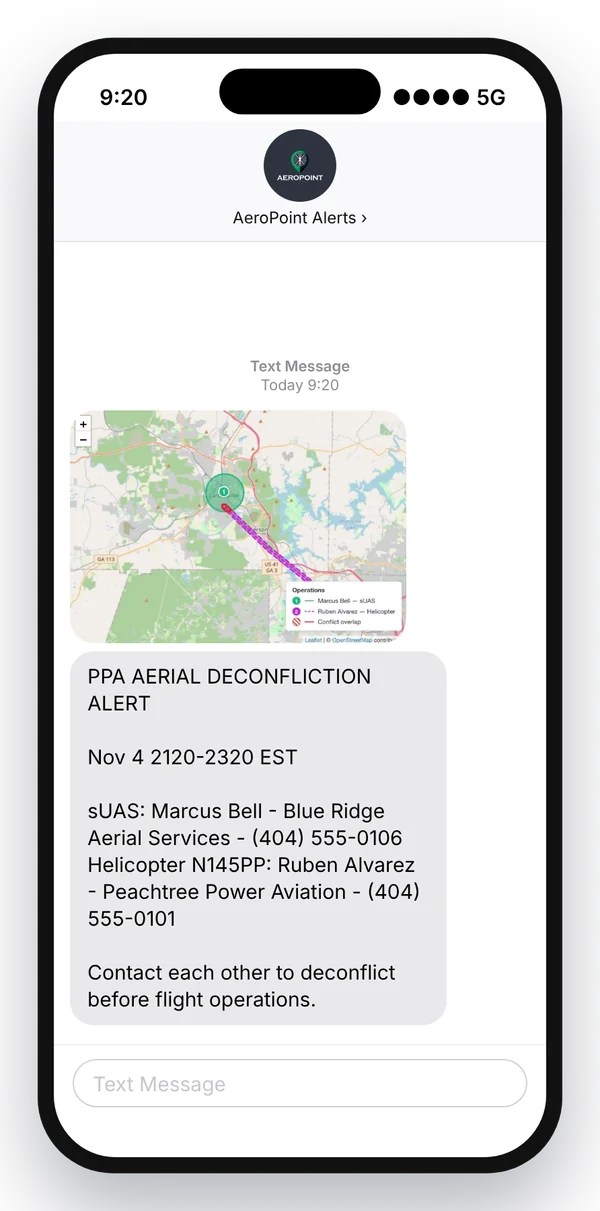
The pilots involved and company admins also receive a text message alert listing each aircraft, pilot, company, and phone number, along with the operation window, so both operators can contact each other and deconflict before flight. Providing a mobile number in your account profile or on a deconfliction entry is consent to receive these alerts; reply STOP to any message to opt out (email notifications continue). Recipients without a 10-digit US mobile number on file get email only.
Deconfliction Reviews
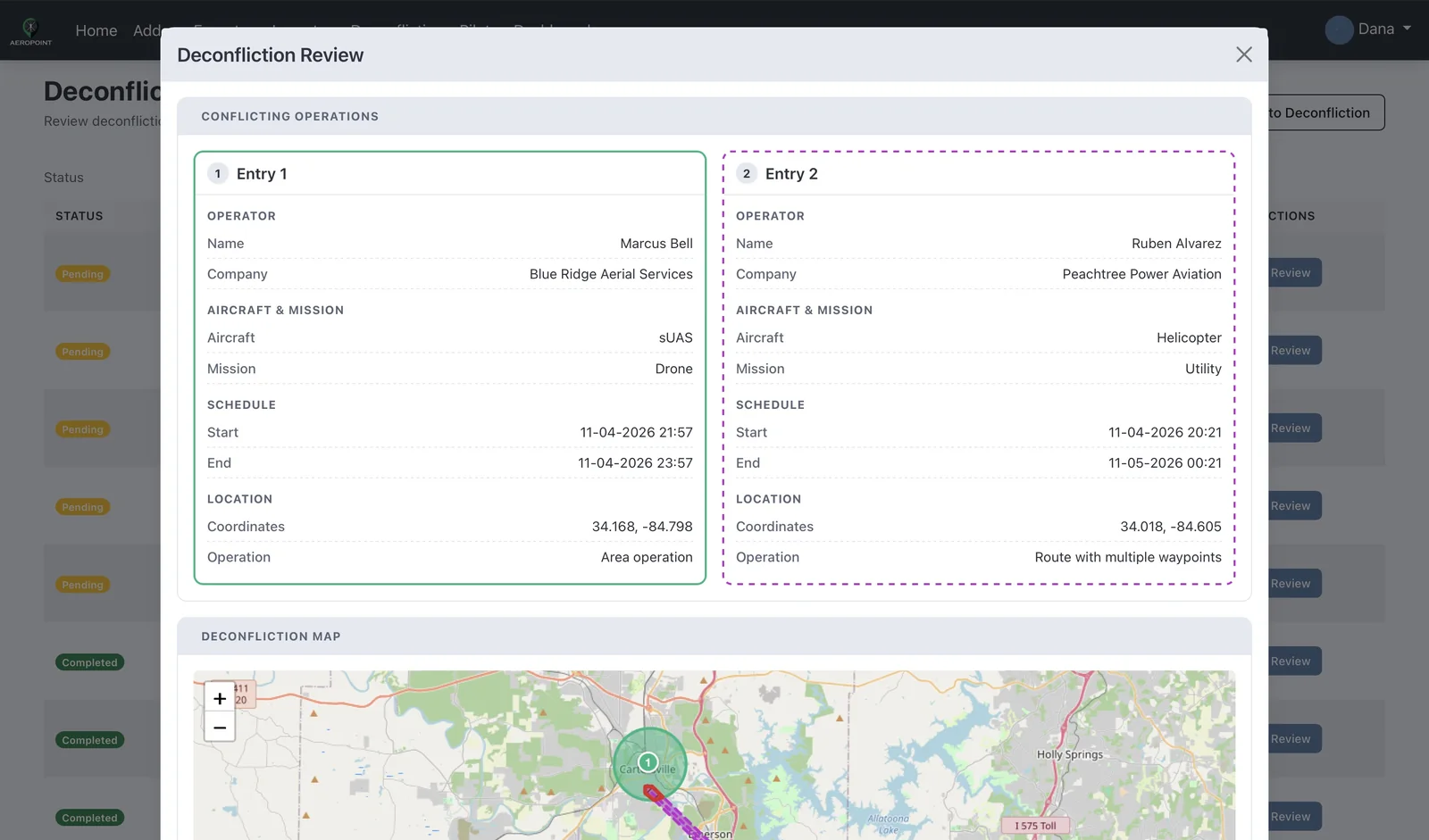
- A review is created when AeroPoint detects a conflict that requires admin attention.
- Admins and operations users open Reviews from the Deconfliction header.
- Review the involved companies, entry details, comments, and conflict image/map context.
- Add comments to record coordination or resolution details.
- Enter a comment before marking the review as reviewed.
- After marking reviewed, the review remains part of the review history with comments and status.
Export to Excel at the top of the Reviews page downloads every deconfliction your company was part of, optionally for a date range, with both flights, their flight numbers, review status, who reviewed it, and every comment.
Approvals And Flight Records
What The Approval System Does
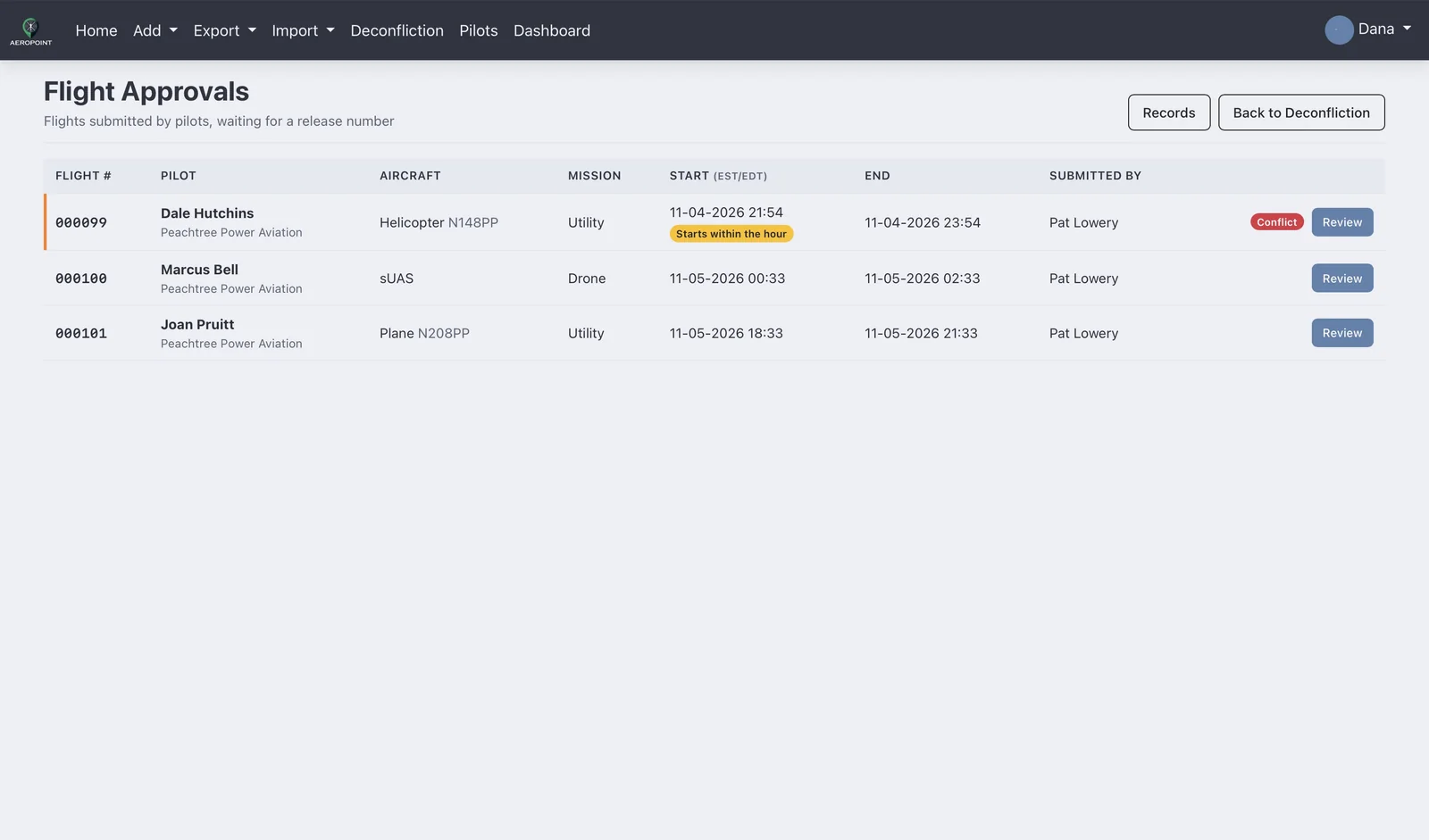
The Approval System lets an operations center or admin release every flight before it goes live. It is switched on per deployment (ask AeroPoint support, or a super admin turns on Enable Approval System under Settings > Features). Whether it is on or off, every flight gets a six-digit flight number (000001, 000002, and so on) and is kept in Records.
For Pilots
- Submit your entry as usual. The confirmation gives you the flight number and tells you it was submitted for approval.
- The flight shows in your Current Entries with its flight number under your name, marked Pending approval. Nobody else sees it, and it is not live airspace until it is approved.
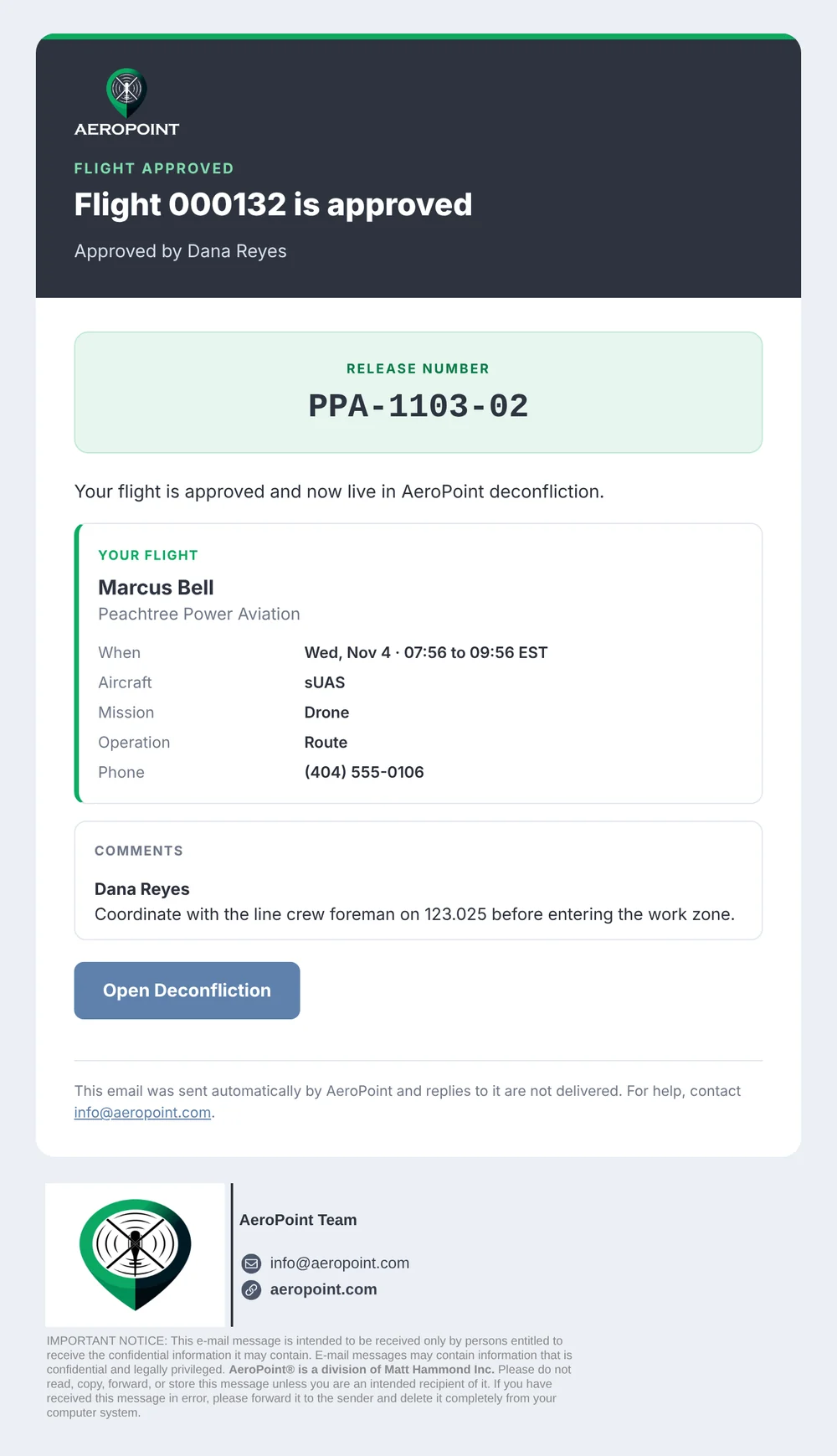
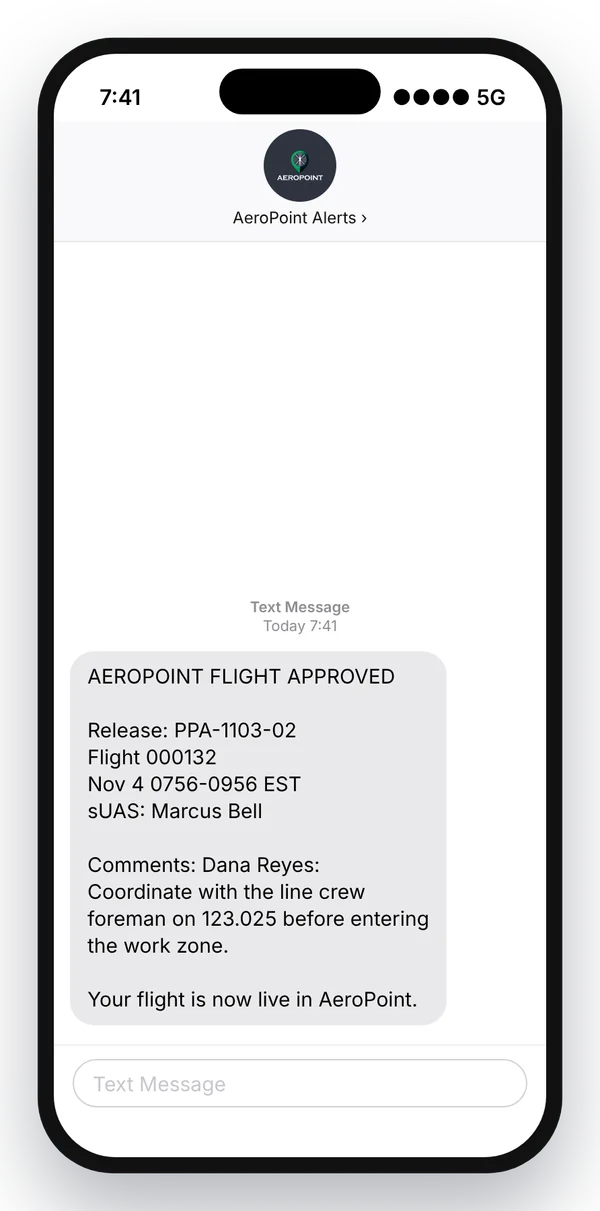
- You get an email and a text when it is approved (with the release number) or denied (with the reason). They include the flight number, the time, where the flight is and a map, so you always know which flight they are about. Any changes the approver made and their comments are included.
- If you change the time, location, route, or aircraft of an approved flight, it goes back for approval, and you get an email and a text saying it is no longer approved. Do not fly it until a new approval arrives. Changing the frequency or phone number does not need a new approval.
For Approvers (Admins And Operations)
- Select Approvals in the Deconfliction header. The badge shows how many flights are waiting; flights starting within the hour are highlighted.
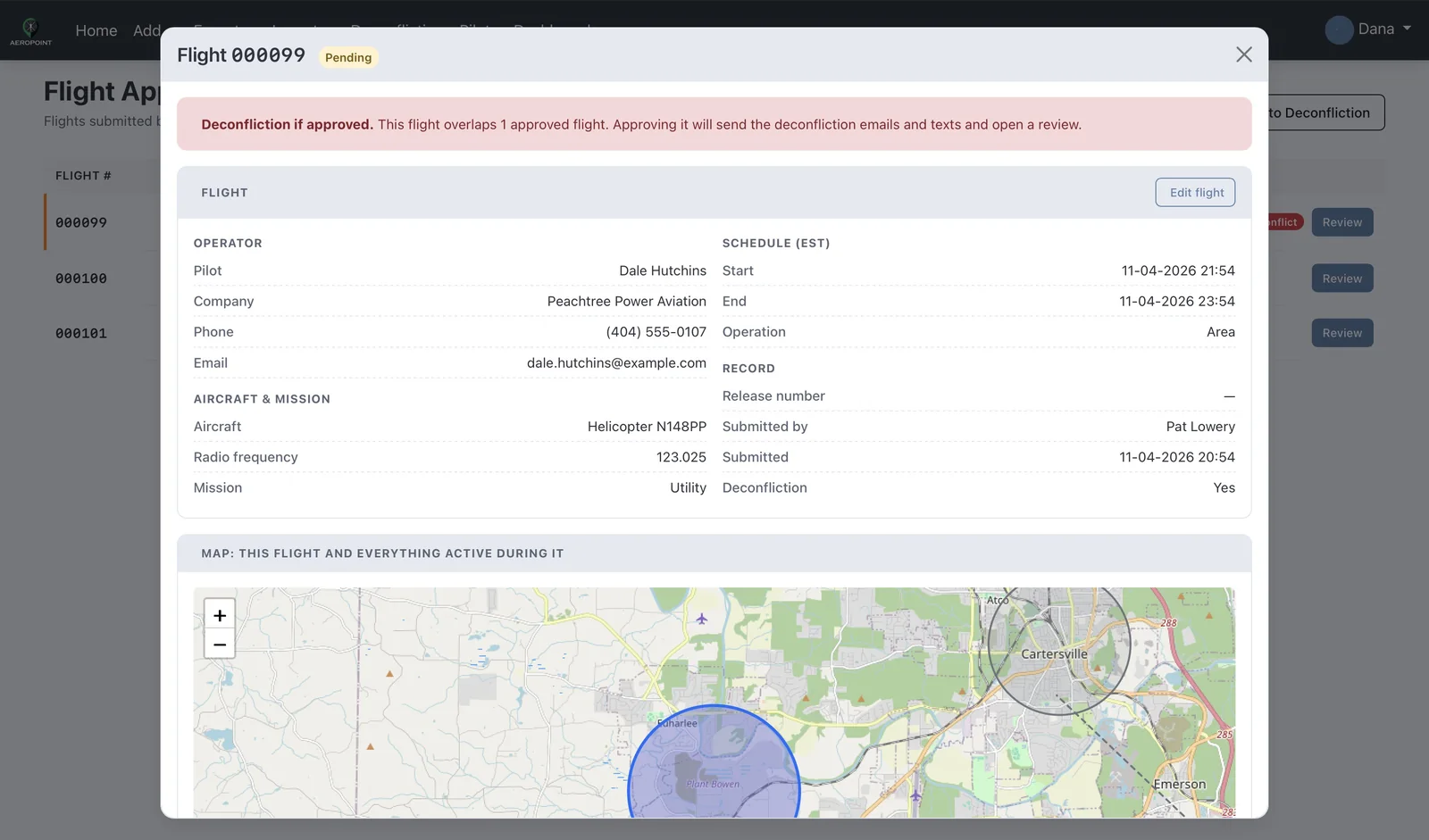
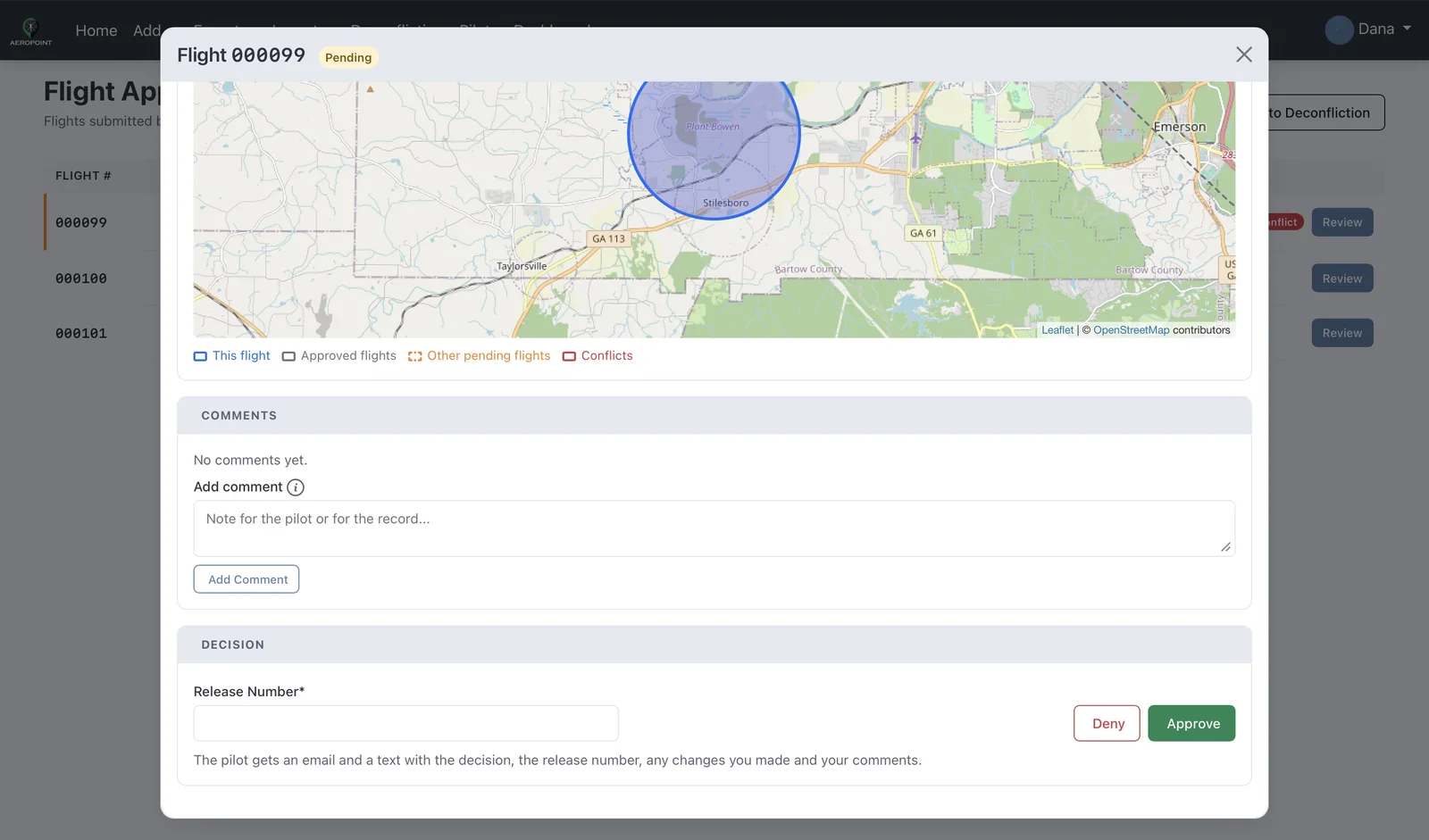
- Open a flight to see its details and a map of it alongside every approved and pending flight active at the same time.
- If approving it would cause a deconfliction, a warning says so before you approve.
- Use Edit flight to change anything, and add comments for the pilot.
- Enter a Release Number and select Approve, or select Deny and give a reason. If the pilot changed a flight that was already approved, the box starts with the previous release number: keep it or enter a new one.
On approval the flight goes live and the normal deconfliction check runs, so any conflict alerts and reviews go out at that moment.
Flights Entered By Admins And Operations Users
Flights entered by an admin or operations user are approved as they are submitted. With the Approval System on, the form asks for the release number (and an optional comment) when you select Submit.
Records
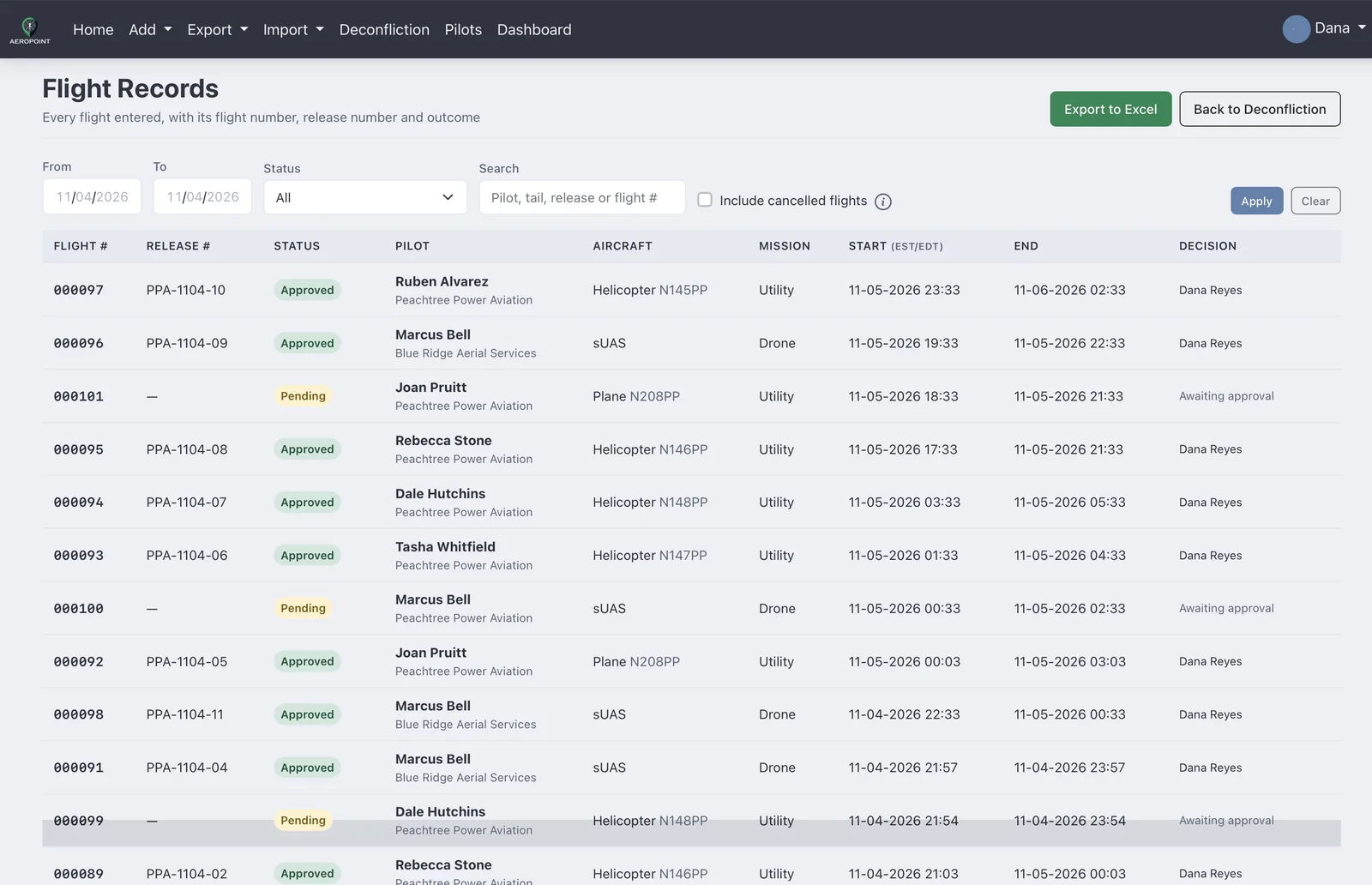
- Select Records in the Deconfliction header to see every flight with its flight number, release number, pilot, aircraft, times, and outcome.
- Statuses are Pending, Approved, Completed, Denied, Cancelled (the flight was deleted), and Expired (it ended without a decision).
- Filter by date range, status, or search for a pilot, tail number, release number, or flight number.
- Cancelled flights that were part of a deconfliction always show; the rest are hidden unless Include cancelled flights is ticked.
- Export to Excel downloads the filtered list with every detail, decision, change, and comment for SMS record keeping.
Operations Centers
The Operations Role
Users in the Operations group file flights on behalf of pilots. They can approve flights, see Reviews and Records, manage the shared pilot list, and use the rest of AeroPoint (waypoints, NOTAMs, and so on). An admin can also be in Operations; Operations only changes how the deconfliction form's operator section works.
Filing A Flight For A Pilot
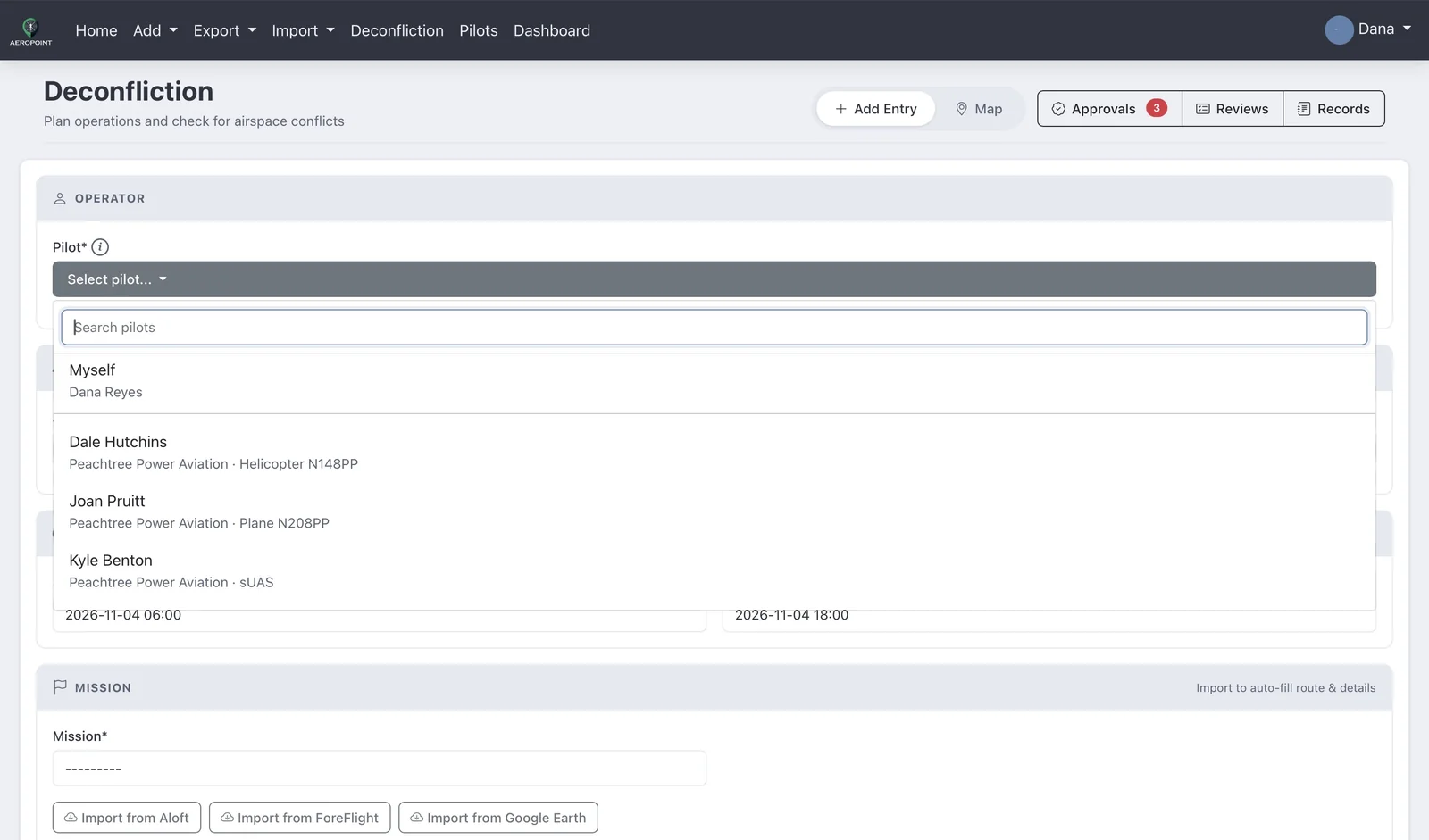
- Open Deconfliction. Instead of your own details, the Operator section shows a Pilot dropdown.
- Search for and select the pilot, or choose Myself at the top to file your own flight.
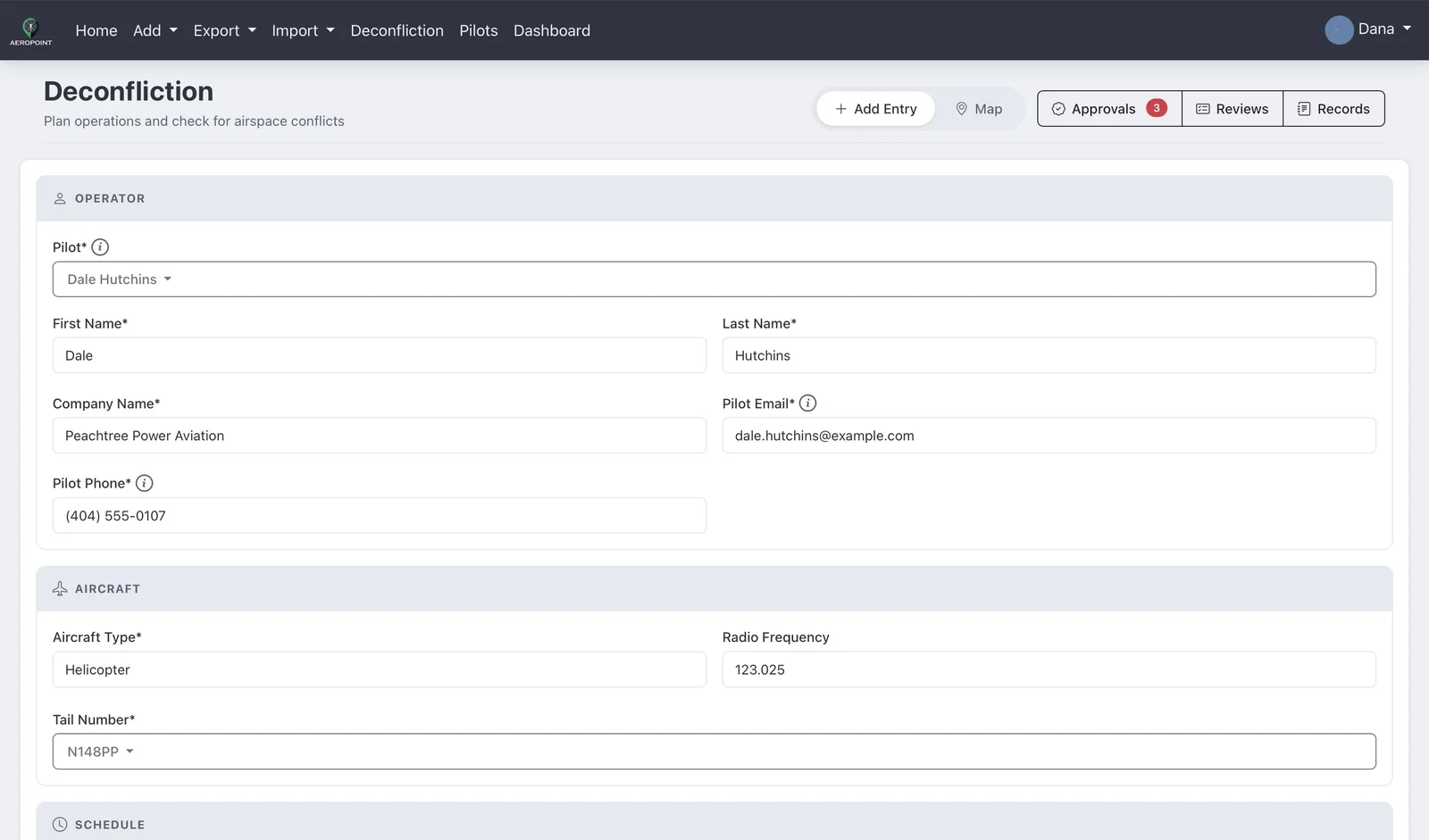
- The pilot's name, company, phone, email, aircraft type, tail number, frequency, and mission fill in. Change anything that is different for this flight.
- Complete the schedule and operation area and submit. Deconfliction alerts go to the pilot you selected.
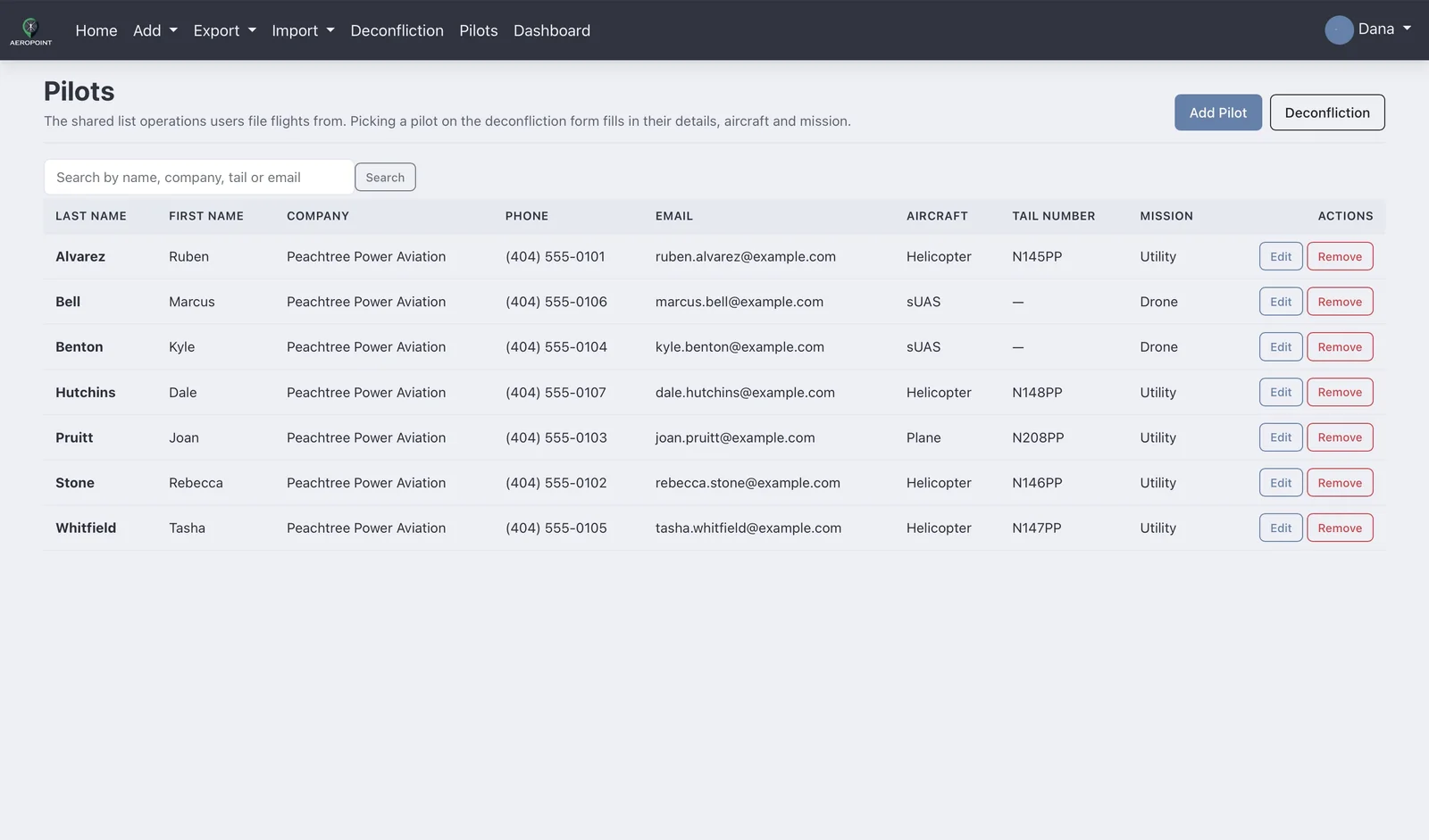
Managing The Pilot List
- Select Pilots in the main navigation.
- Select Add Pilot and enter first and last name, company, phone, email, default aircraft type, default tail number (planes and helicopters), default mission, and an optional default radio frequency.
- Mission defaults to Utility for planes and helicopters and Drone for sUAS.
- The list is shared by every operations user, so the next shift sees the same pilots. The Pilots page and the pilot dropdown are only for the Operations group.
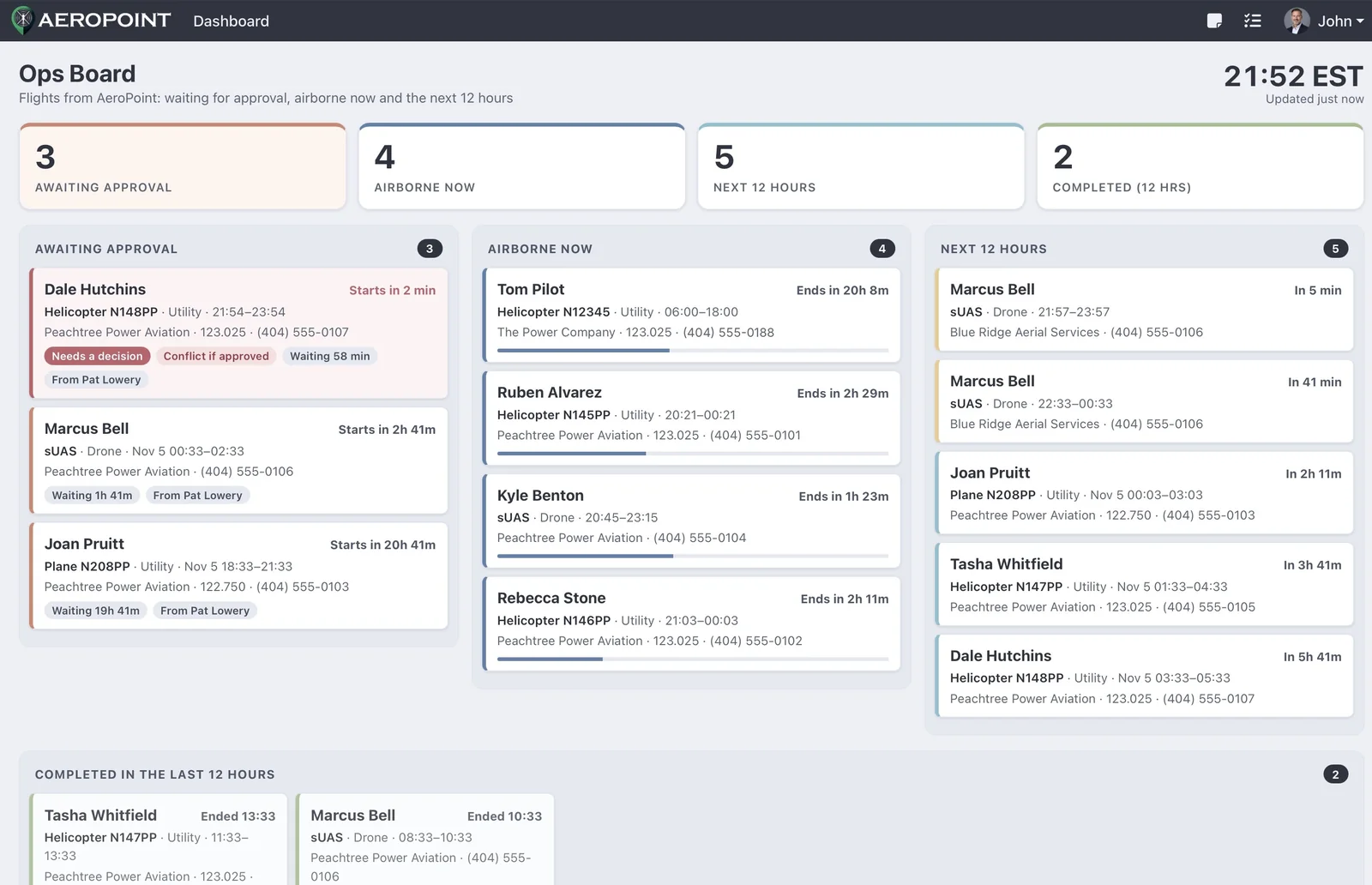
AeroStatus Ops Board
Companies using the AeroStatus dashboard also get an Ops Board page for the operations center TV: flights waiting for approval, airborne now, the next 12 hours and completed in the last 12 hours. It refreshes every minute and flags flights that start within 30 minutes and still need a decision. It is built to stay open around the clock: it keeps itself signed in, keeps the screen awake where the browser allows, and reloads every few hours to pick up updates.
Database Backups
- Open Settings.
- Select Database.
- Company admins use the company backup section to create a company-scoped backup.
- Superusers can create a full database backup and may see restore controls.
- Download and store backup files according to your organization’s retention process.
Company backup UI copy indicates the backup includes company data, waypoints, NOTAMs, files, and excludes users/deconfliction data. Full restore is superuser-only and should be treated as destructive because it can overwrite current database state.
Permissions / Roles
| Role | Typical Access |
|---|---|
| Regular users | Program tabs and deconfliction features allowed by their groups and enabled feature flags. |
| Company admins | User management, groups, programs, logs, company backup, deconfliction reviews, flight approvals and records, the pilot list, and company-level settings. |
| Operations | Everything regular users have, plus filing flights for pilots from the shared pilot list, flight approvals and release numbers, deconfliction reviews, flight records, and Excel exports. |
| Superusers | Full system access, feature flags, cross-company administration, full database backup, and restore controls. |
| Contractors | Contractor-only users default to Deconfliction with stripped navigation. Additional group membership can expand access. |
How Program Access Is Enforced
Program membership is enforced on every request, not just in the menus. Every page, export, and download checks your access for itself, so people in one program cannot reach another program's waypoints, NOTAMs, plates, layers, files, or county notes — even by editing a web address by hand. Contractor accounts are restricted to deconfliction on the server, not just hidden from the navigation. Access still comes from the groups your administrator puts you in, and losing group access takes effect immediately.
setup_groups).Troubleshooting
Login or password reset problems
Confirm the username/email matches the invited account, check spam folders for reset mail, and ask an admin to verify your user status and group membership.
CSV import errors
Check headers, duplicate IDs, icon values, required coordinates, date formats, and quoted multiline descriptions. Start from the current sample CSV when rebuilding the file.
Missing required profile fields
Open Account Settings and complete required identity, timezone, coordinate format, company name, profile picture, and phone fields when deconfliction is enabled.
Coordinate format problems
Use DD, DDM, or DMS. Verify hemisphere suffixes and negative signs before importing or saving.
File upload problems
Confirm the file belongs in the selected tab, check file type restrictions, wait for the upload to finish, and refresh the same tab after upload.
Dropbox issues
Reconnect Dropbox from Account Settings, verify the correct account, and confirm you have permission to the expected Dropbox location.
Deconfliction import issues
Confirm the source file type, check your token for Aloft imports, and review imported route points before submitting.
Tail number not appearing
Tail numbers only show for Plane and Helicopter. Select one of those aircraft types, then open the dropdown or use Add Tail Number.
Saved route selection or deletion problems
Click anywhere on a row to select a saved route, or type in the search box at the top of the dropdown to narrow the list. Use the trash icon only to delete it.
Permission or access issues
Ask a company admin to check your status, groups, assigned programs, and whether required feature flags are enabled.